

Last Updated on April 9, 2026 by Triumphoid Team
The moment you try to push Typeform beyond “collect emails and pass to CRM,” things start to break in subtle ways. Not visibly. Not immediately. But in ways that slowly poison your pipeline—misrouted deals, missing files, broken attribution, and those infuriating “why is this field empty again?” moments.
This is where most tutorials stop. They show a clean demo. One form. One pipeline. No edge cases.
That’s not how it works in production.
The reality is often messier: once you introduce conditional logic, file uploads, and dynamic routing into HubSpot, you’re no longer dealing with a form integration. You’re building a mini data pipeline.
Let’s walk through how to do this properly—without the usual shortcuts that come back to bite later.
What “Complex” Typeform → HubSpot Integration Actually Means
A basic integration sends:
- name
- maybe one custom field
A complex integration handles:
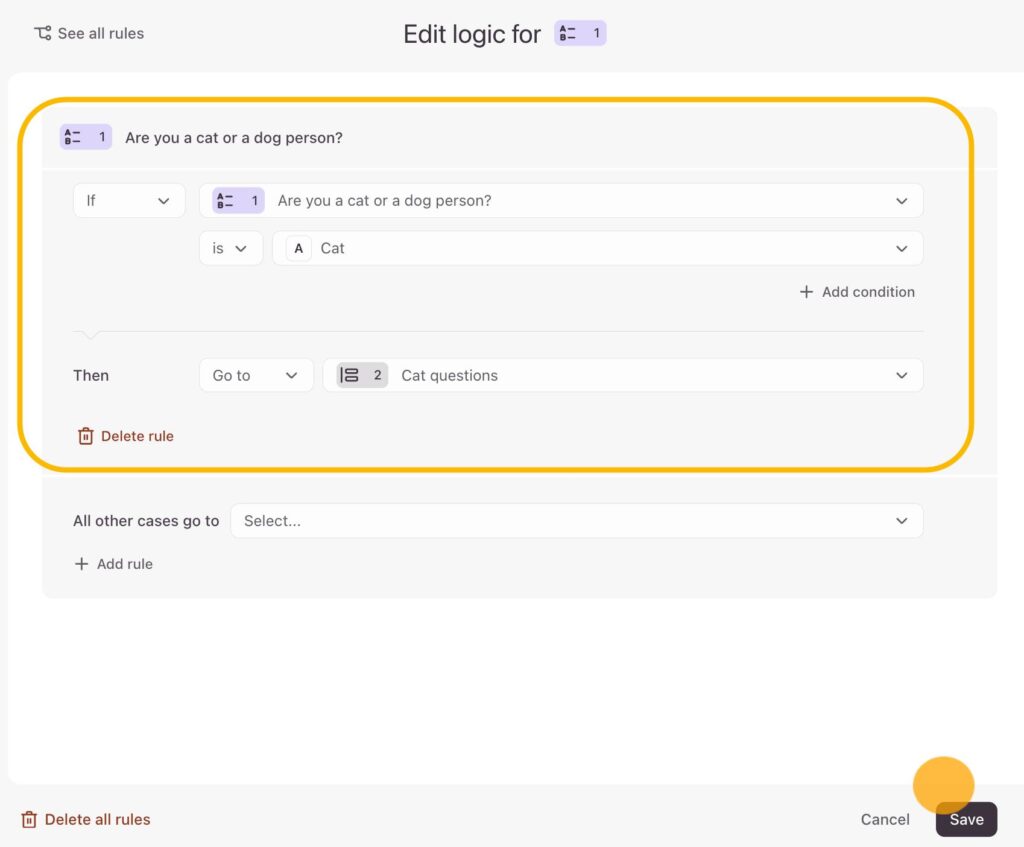
- conditional branching logic (different answers → different outcomes)
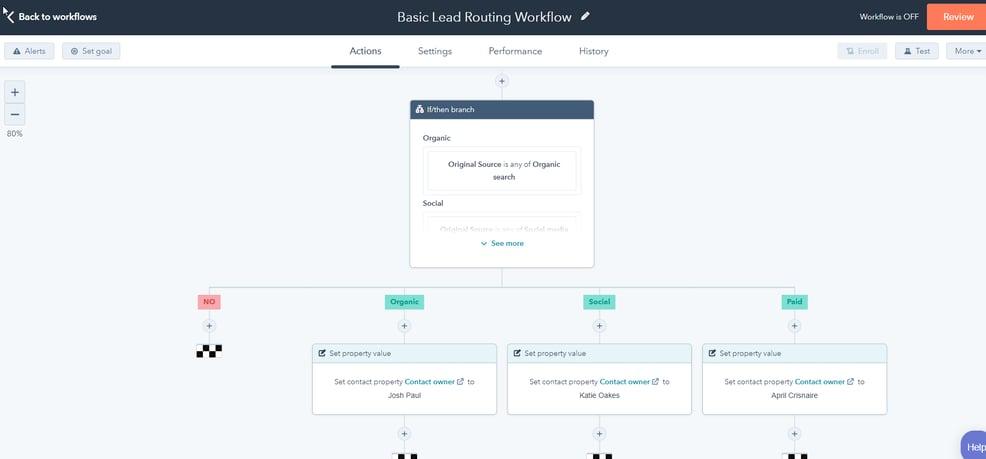
- pipeline routing (one form → multiple deal pipelines)
- file handling workflows (Typeform → storage → CRM reference)
- hidden field injection + tracking
- error handling + retries
That’s not a Zap anymore. That’s sales operations automation.
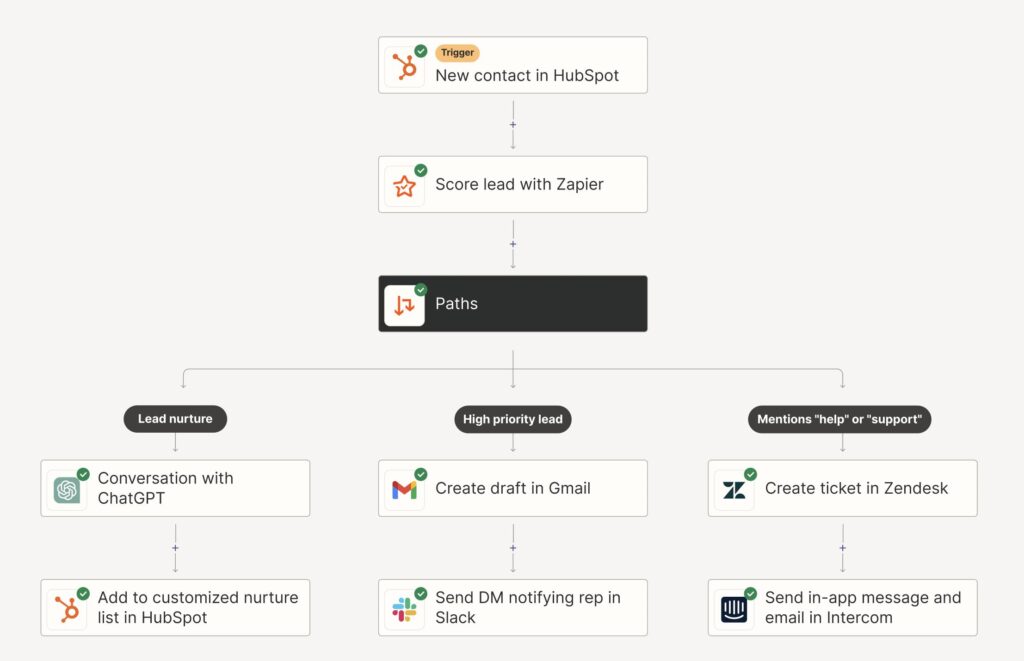
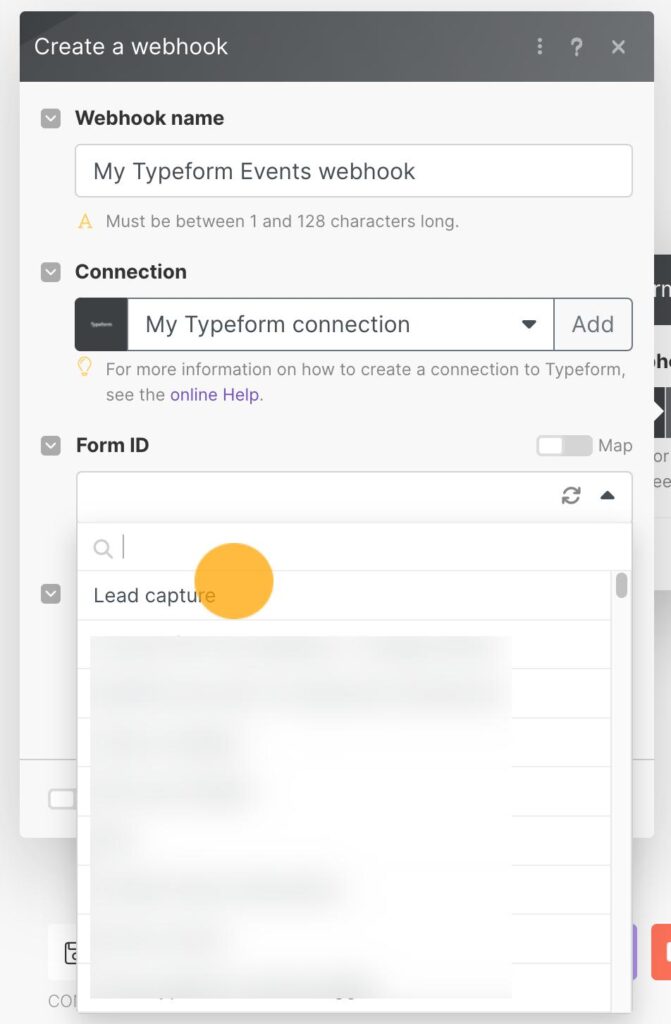
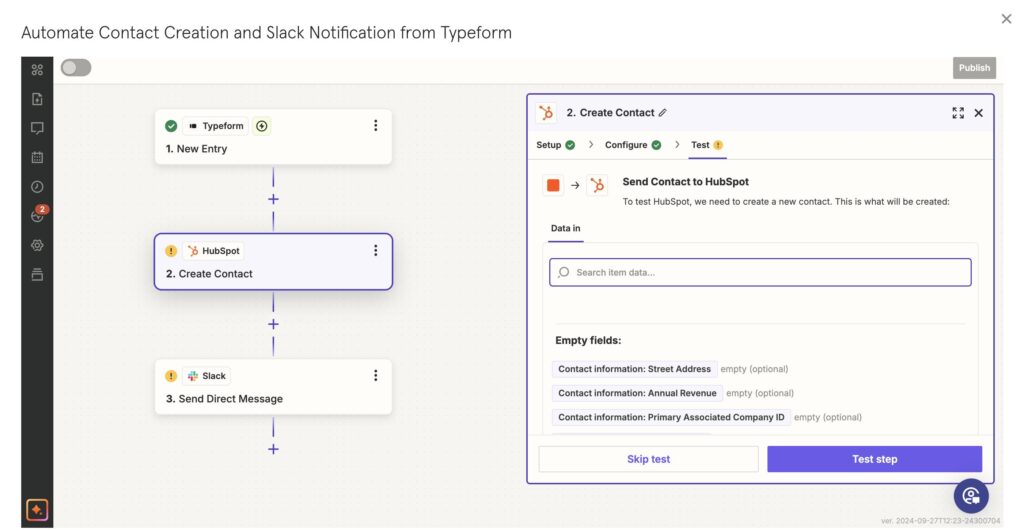
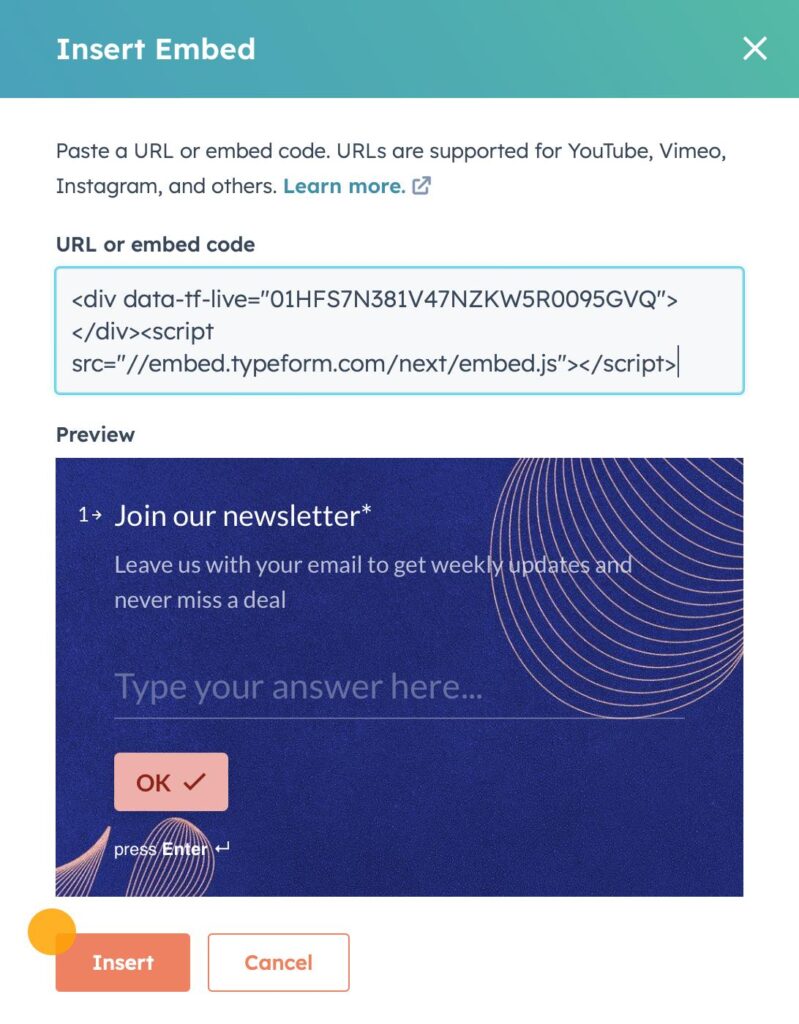
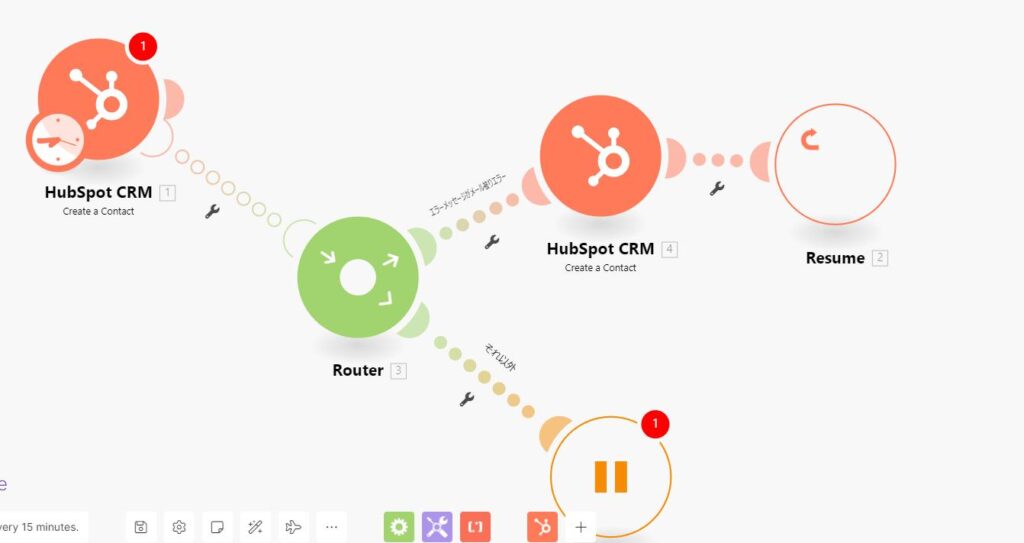
Here’s what the architecture looks like conceptually:

The Real Constraint Nobody Mentions
Typeform does not “understand” HubSpot pipelines.
HubSpot does not “understand” Typeform logic.
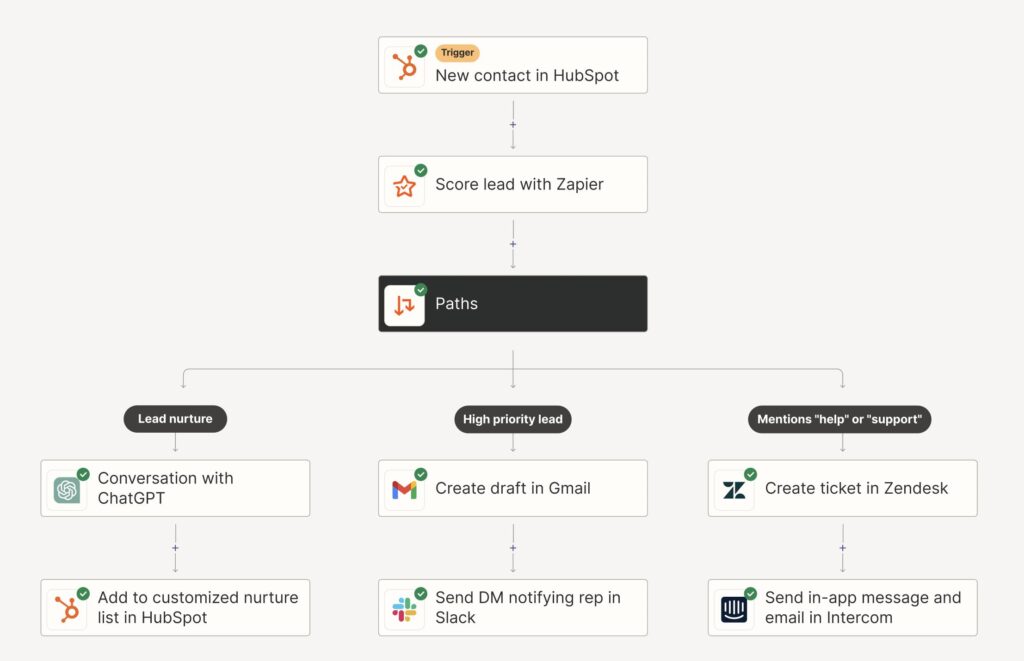
So you need a translation layer—usually something like Make.com—to:
- interpret Typeform answers
- apply business rules
- execute correct CRM actions
Skip this layer and you’ll end up hardcoding logic in places where it doesn’t belong.
Scenario 1: Routing Leads to Different HubSpot Pipelines
This is where most teams get it wrong.
They assume:
“Dropdown → Pipeline”
But HubSpot pipelines are not just labels. They define entire deal lifecycles.
Example Scenario
A single Typeform asks:
“What are you interested in?”
Options:
- Enterprise Demo
- Affiliate Partnership
- Technical Integration
Now, here’s the correct mapping logic:
| Typeform Answer | HubSpot Pipeline | Deal Stage | Owner Assignment |
|---|---|---|---|
| Enterprise Demo | Sales Pipeline | Demo Scheduled | SDR Team |
| Affiliate Partnership | Partnerships Pipeline | New Partner Lead | Partnerships Manager |
| Technical Integration | Solutions Pipeline | Technical Review | Solutions Engineer |
If you route all of these into one pipeline, you create chaos:
- wrong KPIs
- broken reporting
- confused sales teams
- deals stuck in wrong stages
This is exactly how “pipeline inflation” happens.
Implementation Logic (Make.com Layer)
Instead of pushing directly to HubSpot:
- Capture Typeform submission
- Parse dropdown answer
- Use conditional router (branch logic)
- Create deal in specific pipeline ID
- Assign owner dynamically
The key detail: HubSpot uses internal pipeline IDs, not names.
If you map names instead of IDs, your integration will break silently when someone renames a pipeline.
Why This Matters More Than It Seems
Have you considered the downstream impact of routing everything into one pipeline?
You lose:
- forecasting accuracy
- deal velocity insights
- segmentation for revenue ops
It looks fine at first. Then six months later, nobody trusts the CRM.
Scenario 2: Handling File Uploads (The Part Everyone Avoids)
Typeform file uploads don’t go directly into HubSpot.
They generate:
- temporary file URLs
- hosted on Typeform infrastructure
- often expiring or restricted
If you try to push those directly into HubSpot, you’ll eventually hit:
- broken links
- inaccessible files
- compliance issues
Correct Flow: File Handling Pipeline
| Step | Action | Tool |
|---|---|---|
| 1 | User uploads file in Typeform | Typeform |
| 2 | Capture file URL | Make.com |
| 3 | Download file (binary) | Make.com |
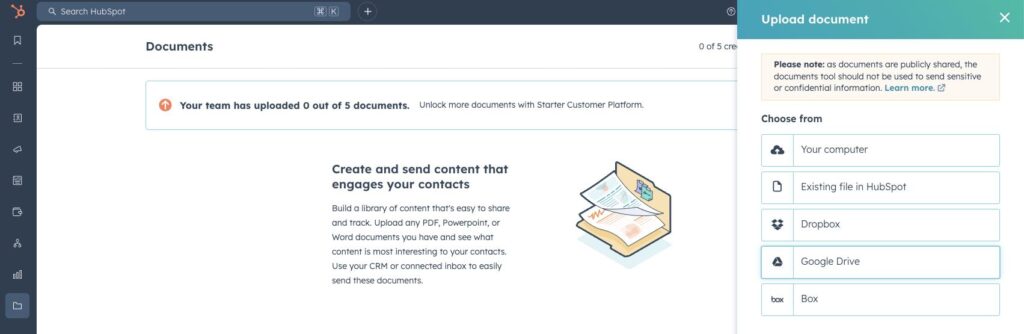
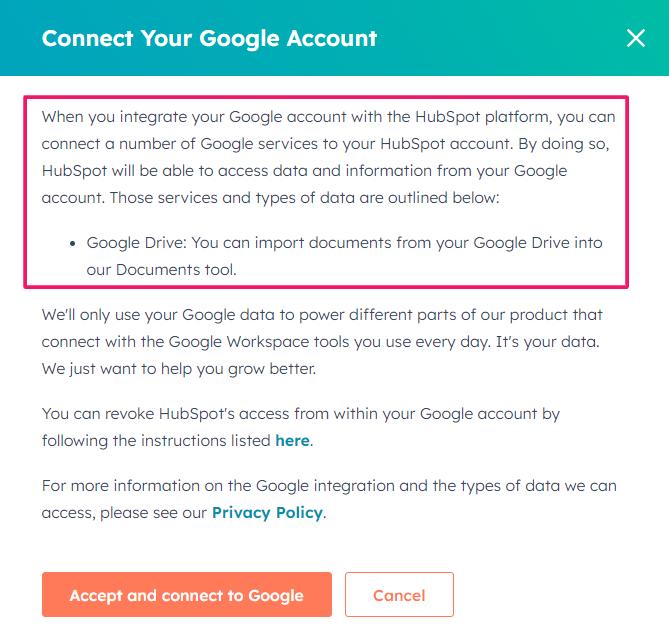
| 4 | Upload to Google Drive | G-Drive |
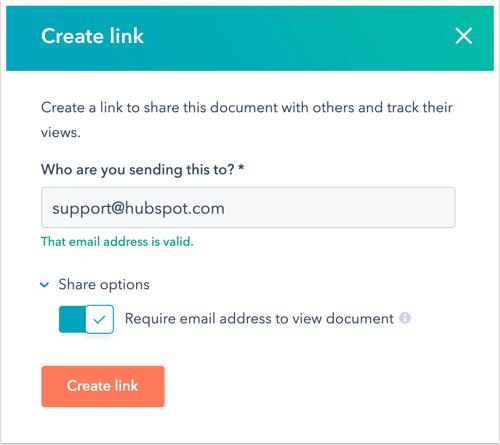
| 5 | Generate shareable link | G-Drive |
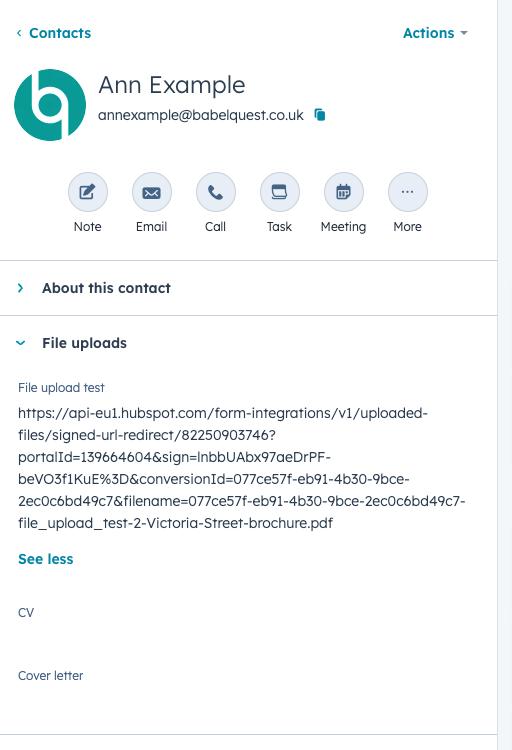
| 6 | Push link to HubSpot contact/deal | HubSpot |



What Most People Do (Wrong)
They store the raw Typeform URL.
It works for a while.
Then:
- link expires
- permissions fail
- sales team clicks → nothing
That’s the moment trust in your system starts eroding.
Technical Detail That Saves Headaches
When uploading to Google Drive:
- force file naming convention (e.g.
leadname_timestamp.pdf) - store file ID, not just URL
- create public or restricted share link intentionally
Otherwise, you’ll end up debugging access issues later.
Scenario 3: Debugging Hidden Field Mapping Issues
This one is deceptively painful.
Hidden fields in Typeform are often used for:
- UTM tracking
- campaign IDs
- affiliate sources
- pre-filled metadata
And yet, they fail silently more often than any other field type.
Typical Symptoms
| Issue | Root Cause |
|---|---|
| Hidden field empty in HubSpot | Not passed correctly in URL |
| Value inconsistent | URL encoding issues |
| Field missing entirely | Mapping mismatch |
| Works in test, fails live | Tracking link differences |
What’s Actually Happening
Hidden fields rely on URL parameter injection, like:
https://form.typeform.com/to/xyz?utm_source=google&campaign=demoIf:
- parameter name doesn’t match exactly
- value isn’t URL-encoded
- redirect modifies URL
…you lose the data.
No error. Just silence.
Fixing Hidden Field Mapping Properly
Instead of trusting Typeform → HubSpot mapping directly:
- Capture raw submission in Make.com
- Inspect hidden fields explicitly
- Validate presence before pushing
- Apply fallback values if missing
Here’s a robust mapping approach:
| Field Type | Validation Strategy |
|---|---|
| UTM Source | Default to “unknown” if empty |
| Campaign | Validate against allowed list |
| Affiliate ID | Check format before assigning |
| Referrer | Capture full URL for debugging |
Honestly, this is where most “attribution issues” start. Not in analytics tools—in broken form mapping.
Putting It All Together: Full Automation Flow
Let’s stitch the entire system:
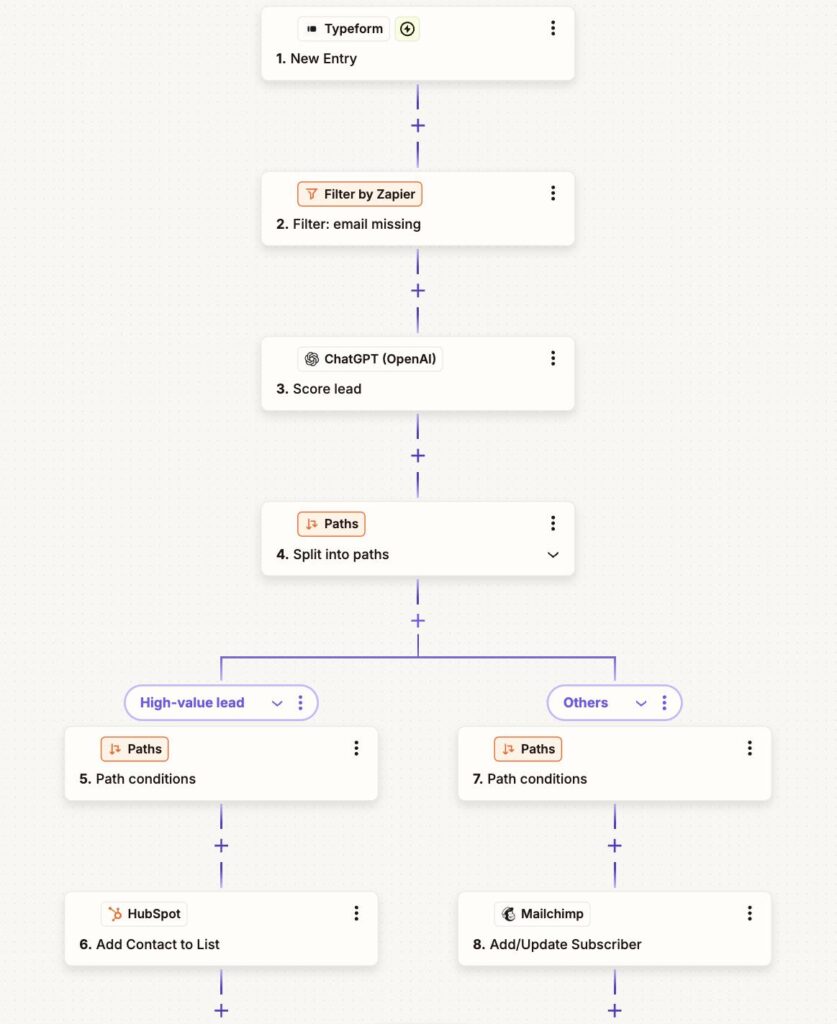
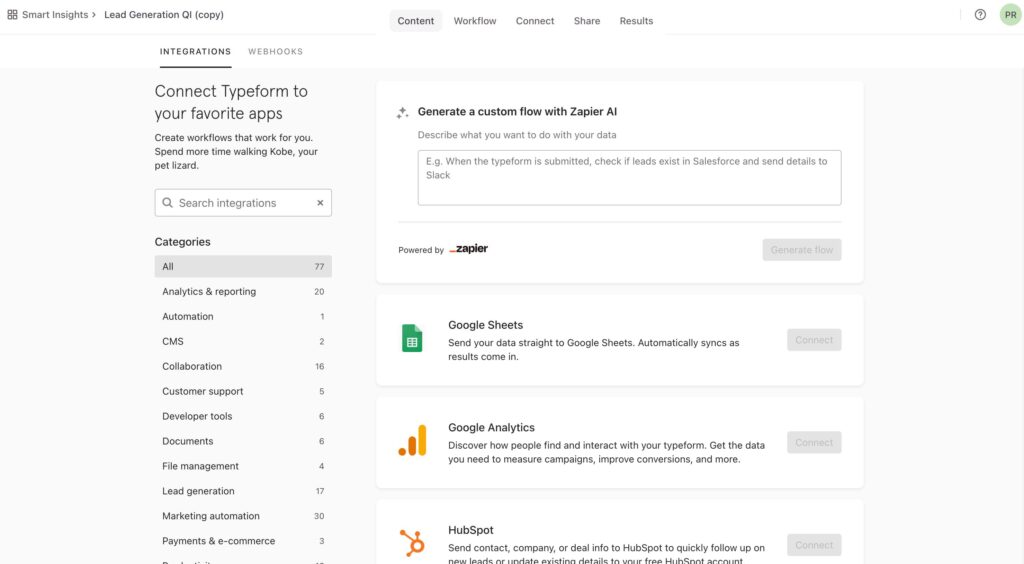
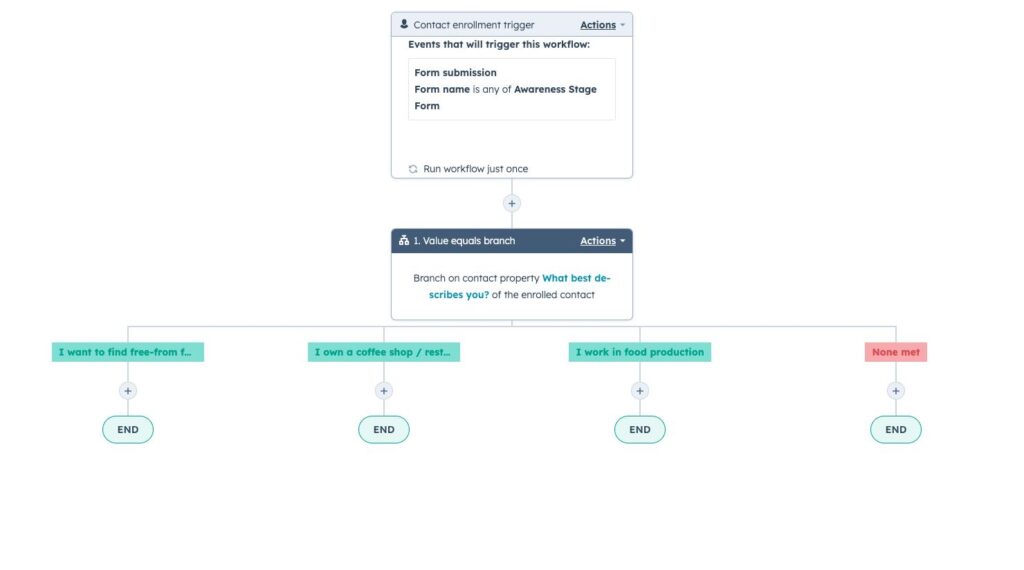
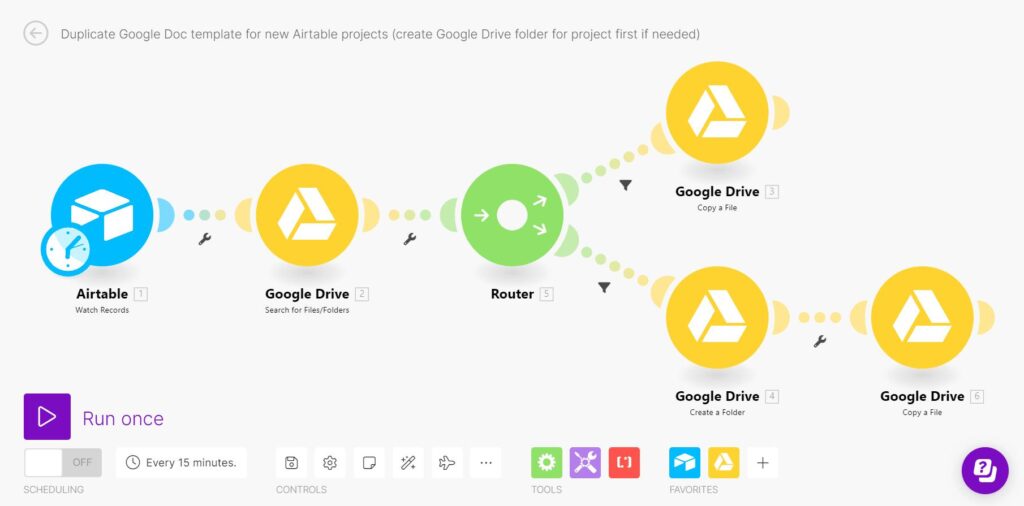
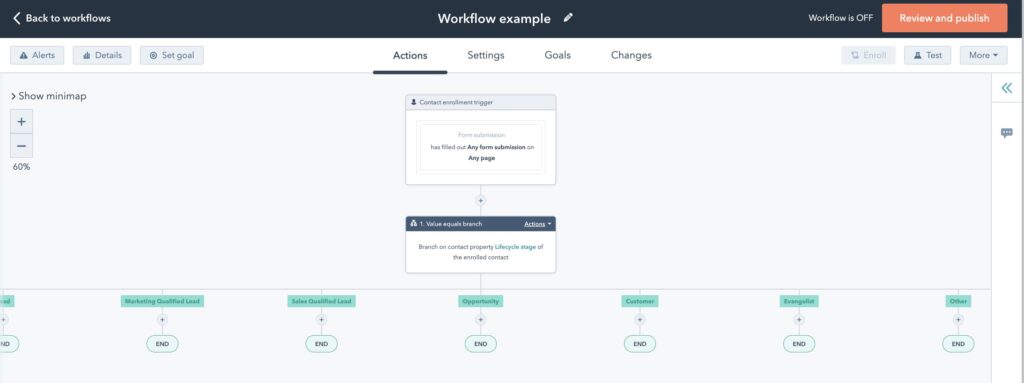
End-to-End Logic
| Layer | Responsibility |
|---|---|
| Typeform | Collect structured input |
| Make.com | Logic engine (routing, validation, transformation) |
| Google Drive | File storage layer |
| HubSpot | CRM system of record |
This separation is not optional.
It’s what prevents your automation from collapsing under edge cases.
What Usually Goes Wrong in Production
Let’s be blunt.
Most implementations fail not because of tools, but because of assumptions.
| Mistake | Consequence |
|---|---|
| Direct Typeform → HubSpot integration | No logic control |
| No routing layer | Misassigned deals |
| Raw file URLs stored | Broken assets |
| Hidden fields not validated | Lost attribution |
| No error handling | Silent data loss |
It’s frustrating when everything “looks connected” but data quality slowly degrades, isn’t it?
The Strategic Take
This isn’t just about connecting tools.
You’re defining:
- how leads enter your revenue system
- how they are classified
- how they are assigned
- how context is preserved
If that layer is weak, everything downstream suffers—sales efficiency, reporting, forecasting.
If it’s strong, you’ve effectively built a controlled intake system for revenue.
A Thought Worth Sitting With
Most teams obsess over conversion rates on forms.
Very few obsess over what happens after the form is submitted.
And yet, that’s where revenue is actually decided.
So the question isn’t:
“Is your Typeform converting well?”
It’s:
Is your data arriving in HubSpot in a way that sales can actually trust?