
Typeform to HubSpot Automation: Conditional Logic Blueprint
Build a reliable Typeform to HubSpot automation with conditional routing, hidden fields, file handling, deduplication, retries, and clean CRM ownership rules.


Last Updated on September 13, 2026 by Triumphoid Team
TL;DR — Typeform to HubSpot with Conditional Logic
- →Typeform’s native HubSpot integration maps fields one-to-one with no conditional routing. The moment you need to route leads based on an answer, you need a workflow layer sitting between the two.
- →Use Make.com or n8n as the middleware: Typeform webhook → parse conditional fields → route to the correct HubSpot pipeline, deal stage, or contact owner based on answer values.
- →Map Typeform’s reference IDs (not field labels) to HubSpot properties — use Typeform’s webhook payload inspector to get the exact field IDs before building any routing logic.
- →Pass UTM parameters through Typeform’s hidden field feature so attribution data lands in HubSpot’s contact record for every form submission, not just direct traffic.
- →Always deduplicate on email before creating a HubSpot contact. Typeform has no native deduplication and will create a new contact on every re-submission of the same email address.
The moment you try to push Typeform beyond “collect emails and pass to CRM,” things start to break in subtle ways. Not visibly. Not immediately. But in ways that slowly poison your pipeline—misrouted deals, missing files, broken attribution, and those infuriating “why is this field empty again?” moments.
This is where most tutorials stop. They show a clean demo. One form. One pipeline. No edge cases.
That’s not how it works in production.
The reality is often messier: once you introduce conditional logic, file uploads, and dynamic routing into HubSpot, you’re no longer dealing with a form integration. You’re building a mini data pipeline.
Let’s walk through how to do this properly—without the usual shortcuts that come back to bite later.
What “Complex” Typeform → HubSpot Integration Actually Means
A basic integration sends:
- name
- maybe one custom field
A complex integration handles:
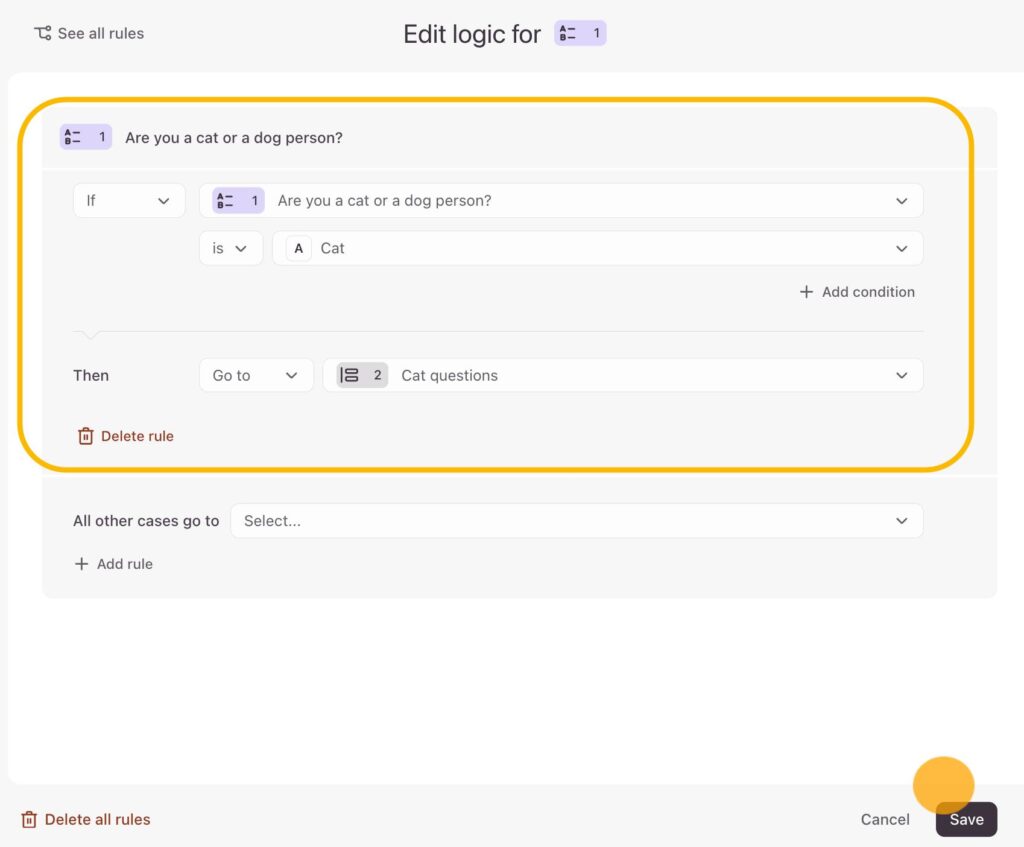
- conditional branching logic (different answers → different outcomes)
- pipeline routing (one form → multiple deal pipelines)
- file handling workflows (Typeform → storage → CRM reference)
- hidden field injection + tracking
- error handling + retries
That’s not a Zap anymore. That’s sales operations automation.
Here’s what the architecture looks like conceptually:
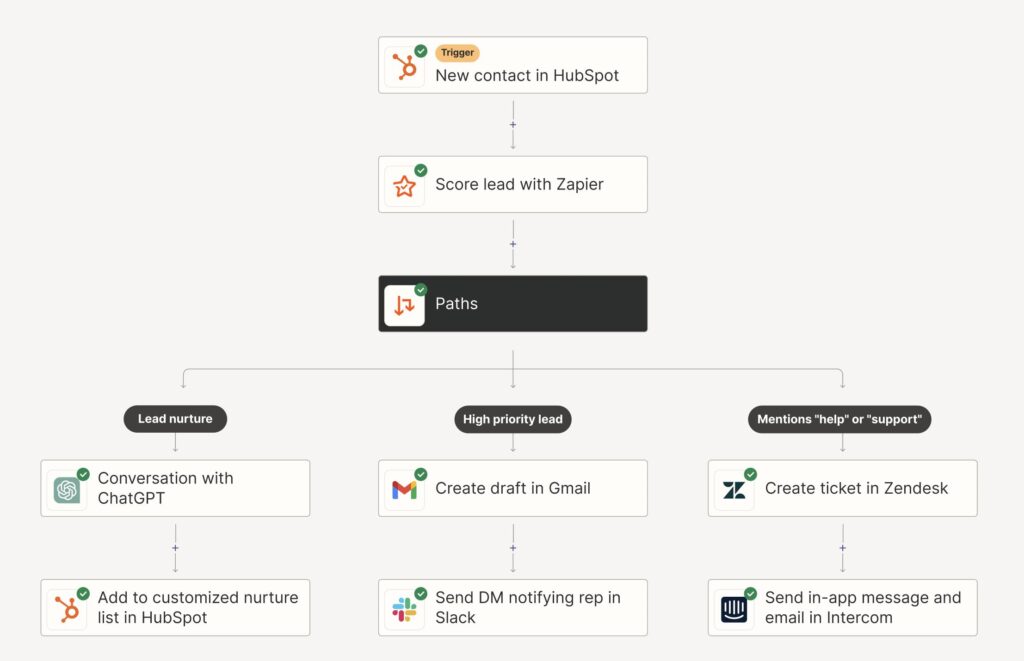
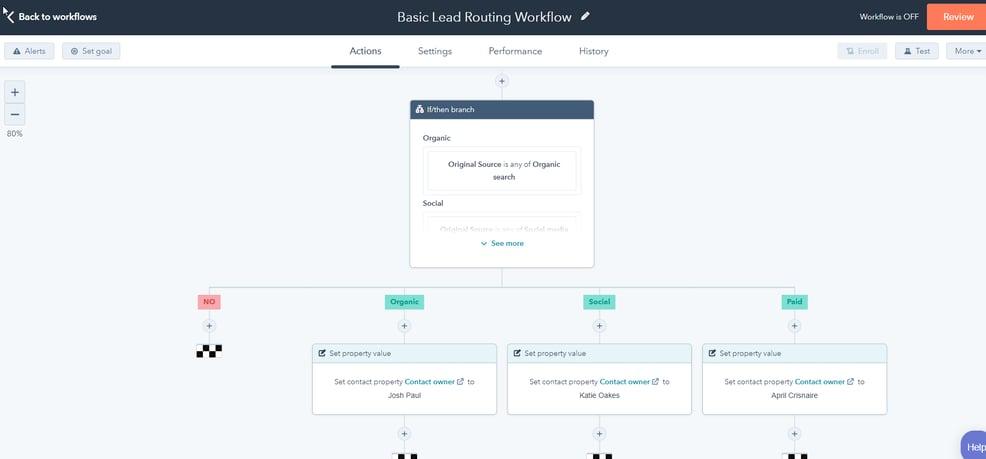
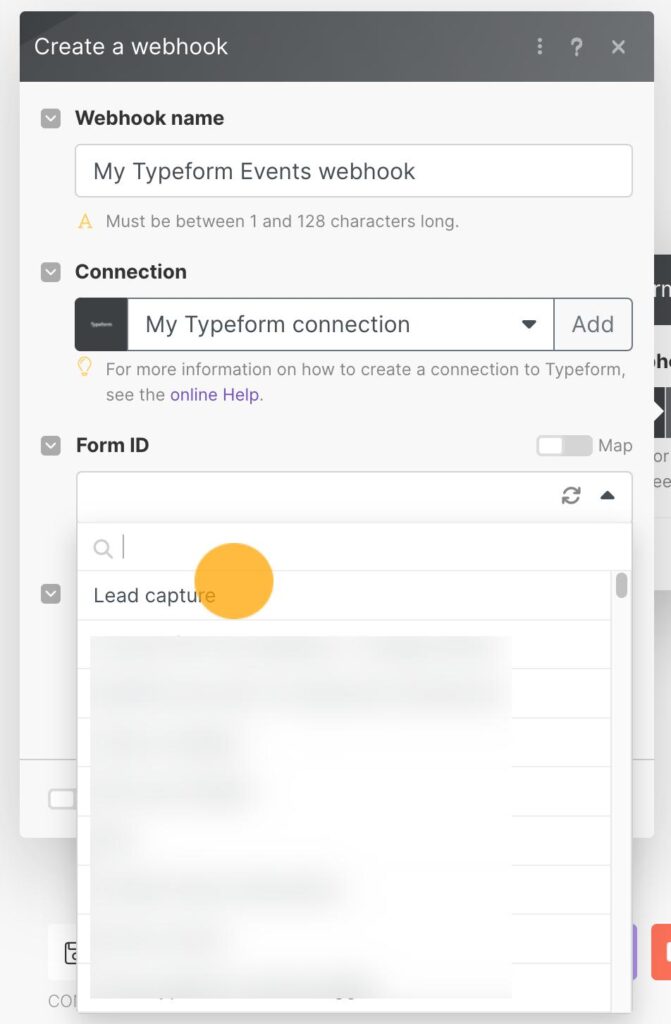
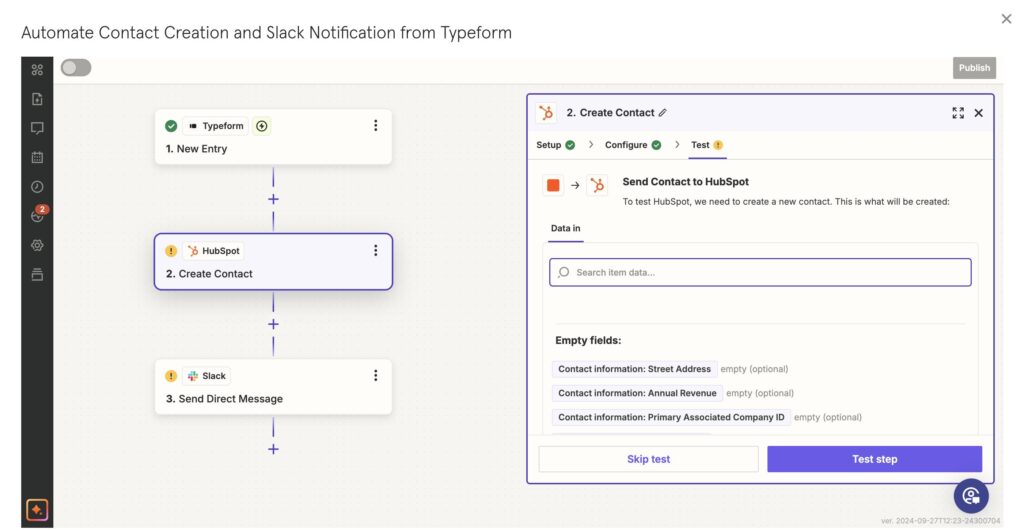
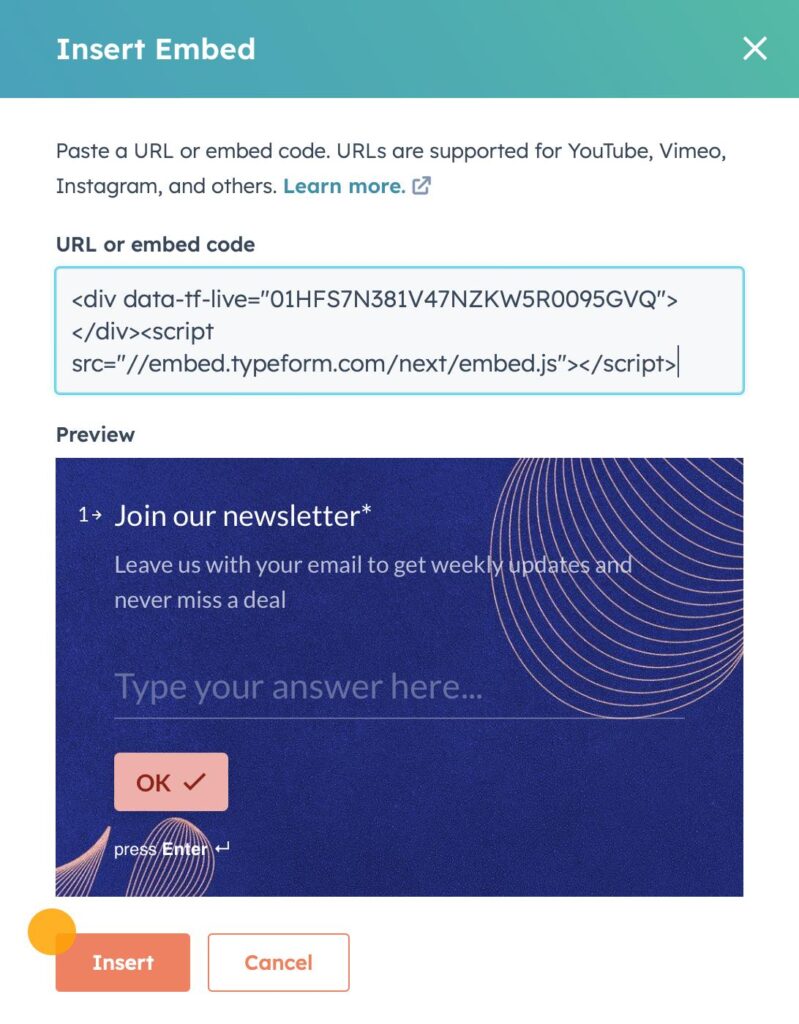

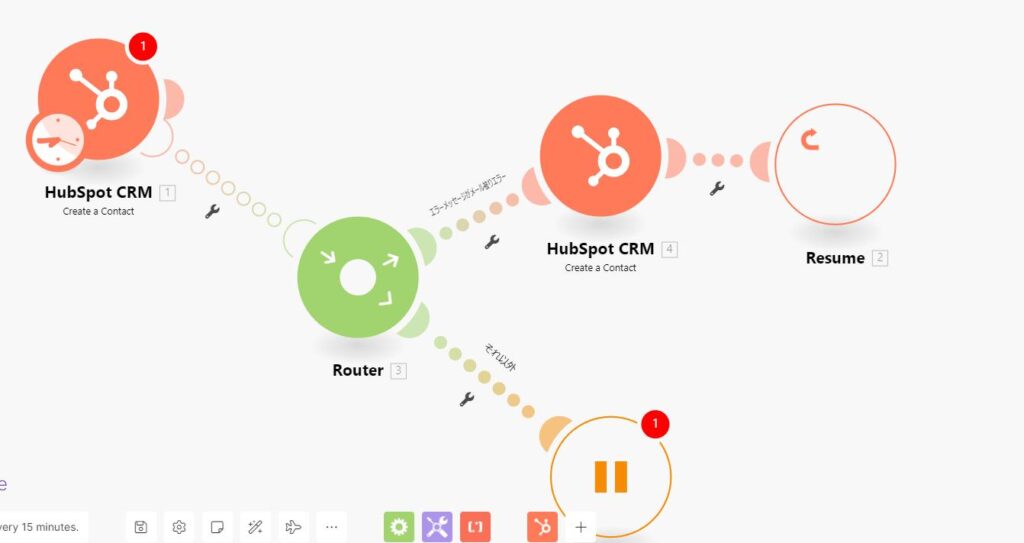
The Real Constraint Nobody Mentions
Typeform does not “understand” HubSpot pipelines.
HubSpot does not “understand” Typeform logic.
So you need a translation layer—usually something like Make.com—to:
- interpret Typeform answers
- apply business rules
- execute correct CRM actions
Skip this layer and you’ll end up hardcoding logic in places where it doesn’t belong.
Scenario 1: Routing Leads to Different HubSpot Pipelines
This is where most teams get it wrong.
They assume:
“Dropdown → Pipeline”
But HubSpot pipelines are not just labels. They define entire deal lifecycles.
Example Scenario
A single Typeform asks:
“What are you interested in?”
Options:
- Enterprise Demo
- Affiliate Partnership
- Technical Integration
Now, here’s the correct mapping logic:
| Typeform Answer | HubSpot Pipeline | Deal Stage | Owner Assignment |
|---|---|---|---|
| Enterprise Demo | Sales Pipeline | Demo Scheduled | SDR Team |
| Affiliate Partnership | Partnerships Pipeline | New Partner Lead | Partnerships Manager |
| Technical Integration | Solutions Pipeline | Technical Review | Solutions Engineer |
If you route all of these into one pipeline, you create chaos:
- wrong KPIs
- broken reporting
- confused sales teams
- deals stuck in wrong stages
This is exactly how “pipeline inflation” happens.
Implementation Logic (Make.com Layer)
Instead of pushing directly to HubSpot:
- Capture Typeform submission
- Parse dropdown answer
- Use conditional router (branch logic)
- Create deal in specific pipeline ID
- Assign owner dynamically
The key detail: HubSpot uses internal pipeline IDs, not names.
If you map names instead of IDs, your integration will break silently when someone renames a pipeline.
Why This Matters More Than It Seems
Have you considered the downstream impact of routing everything into one pipeline?
You lose:
- forecasting accuracy
- deal velocity insights
- segmentation for revenue ops
It looks fine at first. Then six months later, nobody trusts the CRM.
Scenario 2: Handling File Uploads (The Part Everyone Avoids)
Typeform file uploads don’t go directly into HubSpot.
They generate:
- temporary file URLs
- hosted on Typeform infrastructure
- often expiring or restricted
If you try to push those directly into HubSpot, you’ll eventually hit:
- broken links
- inaccessible files
- compliance issues
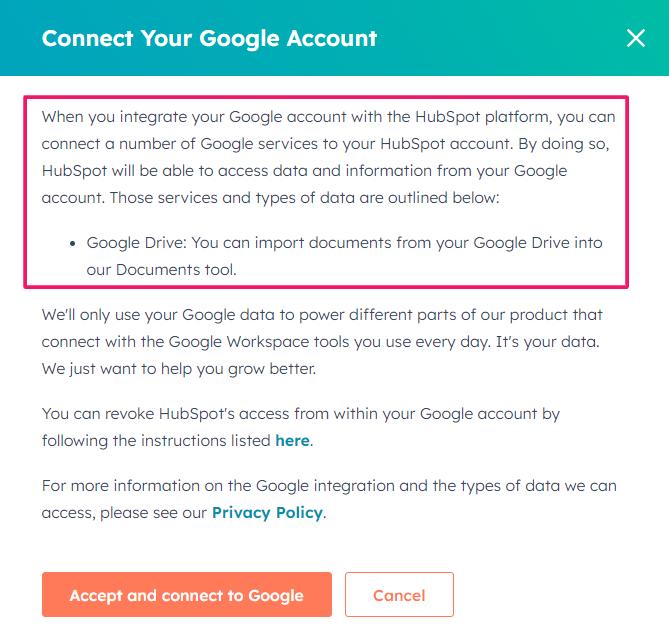
Correct Flow: File Handling Pipeline
| Step | Action | Tool |
|---|---|---|
| 1 | User uploads file in Typeform | Typeform |
| 2 | Capture file URL | Make.com |
| 3 | Download file (binary) | Make.com |
| 4 | Upload to Google Drive | G-Drive |
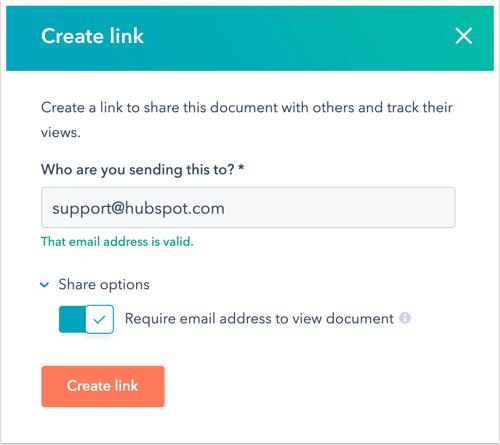
| 5 | Generate shareable link | G-Drive |
| 6 | Push link to HubSpot contact/deal | HubSpot |


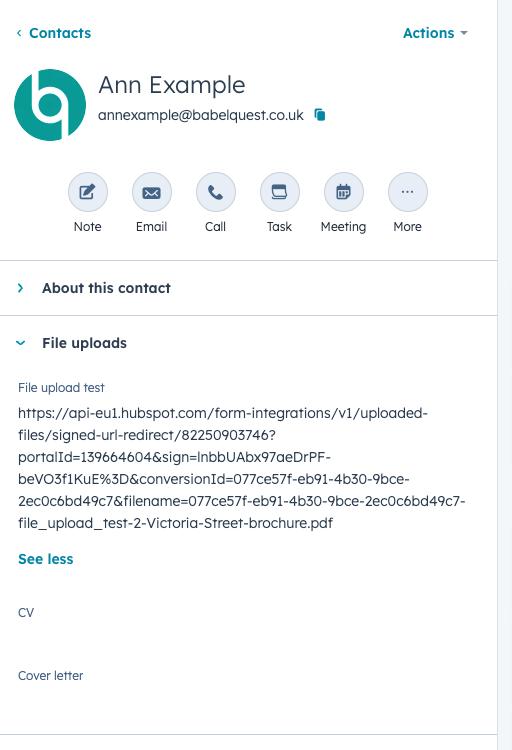
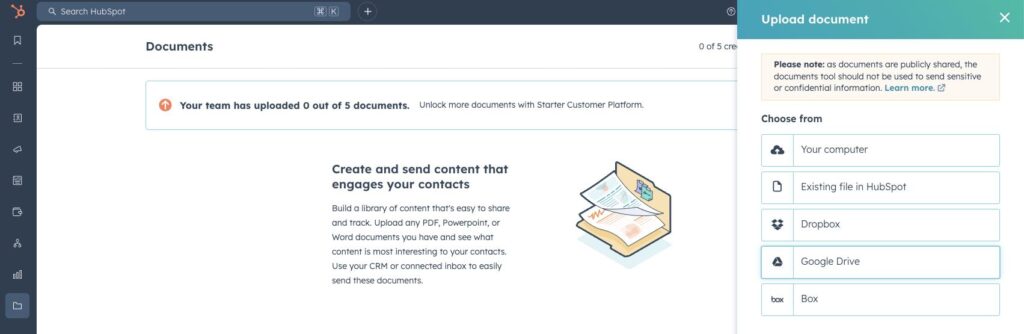

What Most People Do (Wrong)
They store the raw Typeform URL.
It works for a while.
Then:
- link expires
- permissions fail
- sales team clicks → nothing
That’s the moment trust in your system starts eroding.
Technical Detail That Saves Headaches
When uploading to Google Drive:
- force file naming convention (e.g.
leadname_timestamp.pdf) - store file ID, not just URL
- create public or restricted share link intentionally
Otherwise, you’ll end up debugging access issues later.
Scenario 3: Debugging Hidden Field Mapping Issues
This one is deceptively painful.
Hidden fields in Typeform are often used for:
- UTM tracking
- campaign IDs
- affiliate sources
- pre-filled metadata
And yet, they fail silently more often than any other field type.
Typical Symptoms
| Issue | Root Cause |
|---|---|
| Hidden field empty in HubSpot | Not passed correctly in URL |
| Value inconsistent | URL encoding issues |
| Field missing entirely | Mapping mismatch |
| Works in test, fails live | Tracking link differences |
What’s Actually Happening
Hidden fields rely on URL parameter injection, like:
https://form.typeform.com/to/xyz?utm_source=google&campaign=demoIf:
- parameter name doesn’t match exactly
- value isn’t URL-encoded
- redirect modifies URL
…you lose the data.
No error. Just silence.
Fixing Hidden Field Mapping Properly
Instead of trusting Typeform → HubSpot mapping directly:
- Capture raw submission in Make.com
- Inspect hidden fields explicitly
- Validate presence before pushing
- Apply fallback values if missing
Here’s a robust mapping approach:
| Field Type | Validation Strategy |
|---|---|
| UTM Source | Default to “unknown” if empty |
| Campaign | Validate against allowed list |
| Affiliate ID | Check format before assigning |
| Referrer | Capture full URL for debugging |
Honestly, this is where most “attribution issues” start. Not in analytics tools—in broken form mapping.
Putting It All Together: Full Automation Flow
Let’s stitch the entire system:
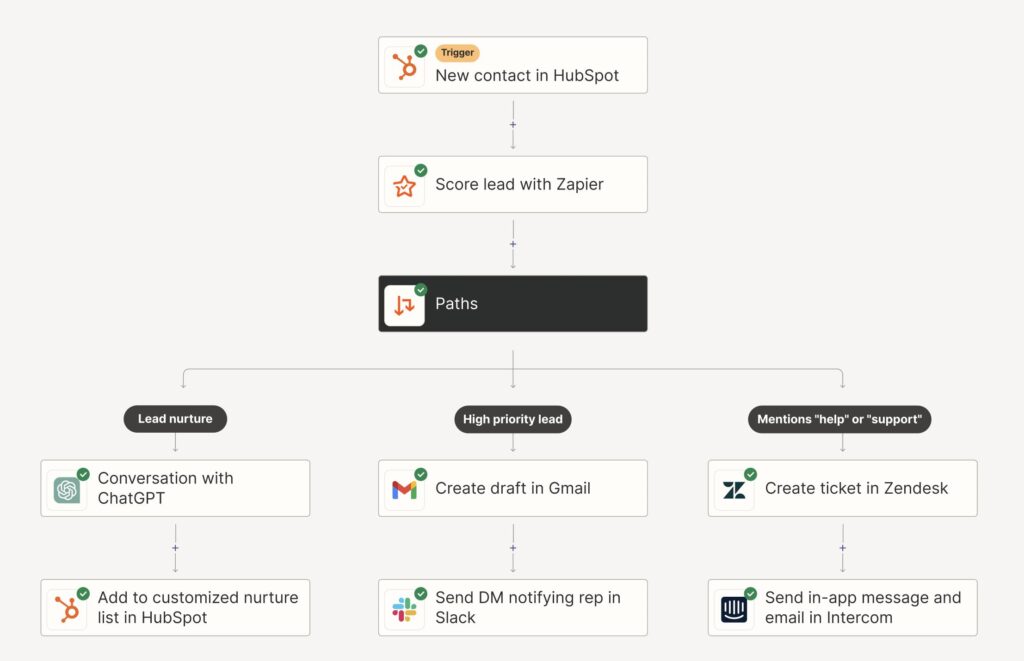
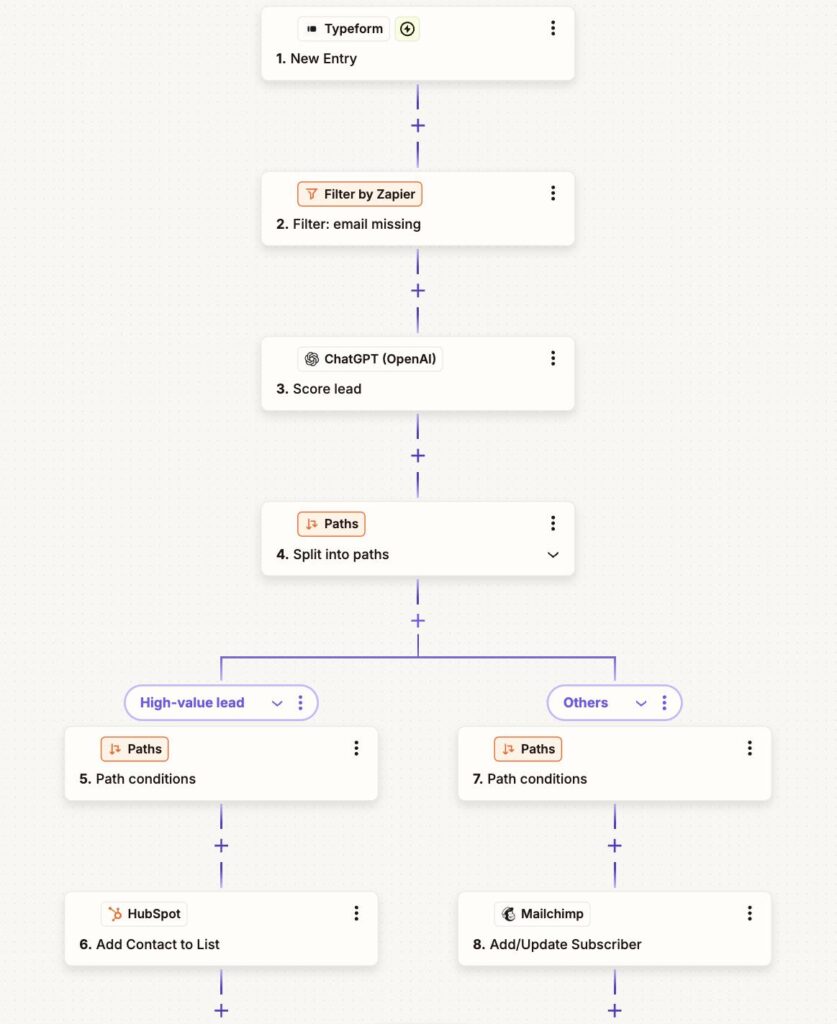
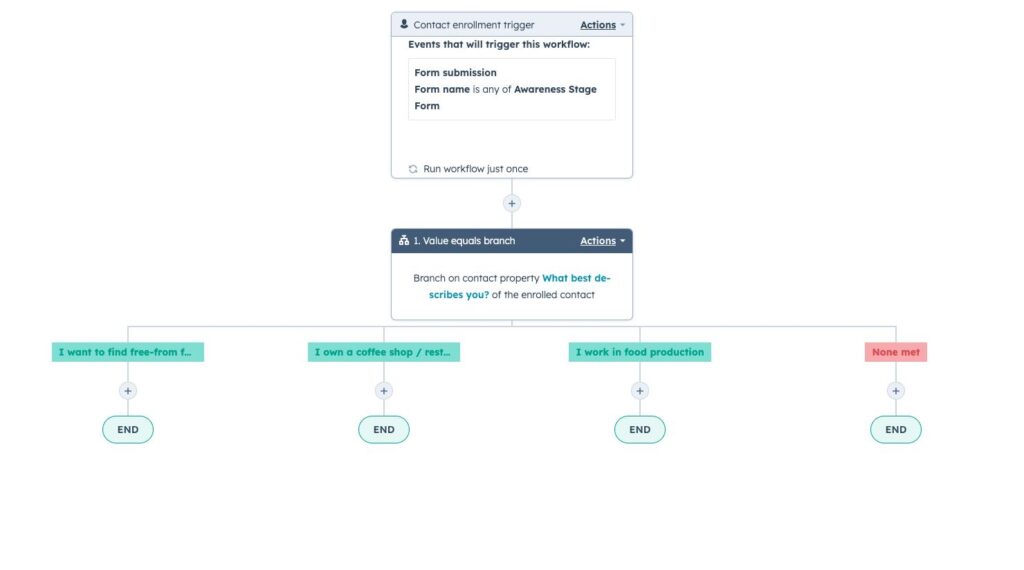
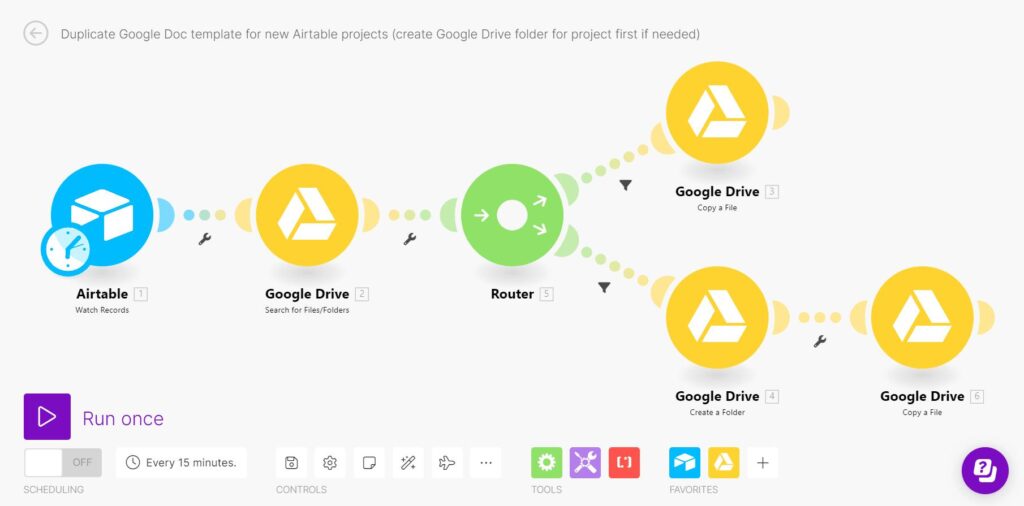
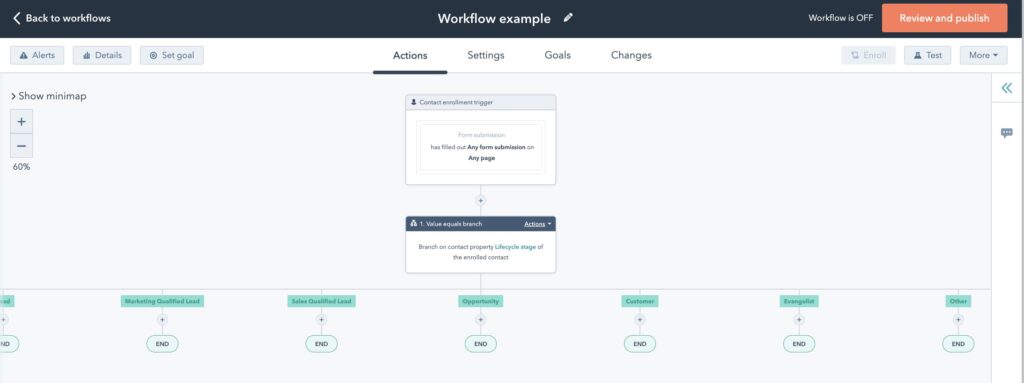
End-to-End Logic
| Layer | Responsibility |
|---|---|
| Typeform | Collect structured input |
| Make.com | Logic engine (routing, validation, transformation) |
| Google Drive | File storage layer |
| HubSpot | CRM system of record |
This separation is not optional.
It’s what prevents your automation from collapsing under edge cases.
What Usually Goes Wrong in Production
Let’s be blunt.
Most implementations fail not because of tools, but because of assumptions.
| Mistake | Consequence |
|---|---|
| Direct Typeform → HubSpot integration | No logic control |
| No routing layer | Misassigned deals |
| Raw file URLs stored | Broken assets |
| Hidden fields not validated | Lost attribution |
| No error handling | Silent data loss |
It’s frustrating when everything “looks connected” but data quality slowly degrades, isn’t it?
The Strategic Take
This isn’t just about connecting tools.
You’re defining:
- how leads enter your revenue system
- how they are classified
- how they are assigned
- how context is preserved
If that layer is weak, everything downstream suffers—sales efficiency, reporting, forecasting.
If it’s strong, you’ve effectively built a controlled intake system for revenue.
A Thought Worth Sitting With
Most teams obsess over conversion rates on forms.
Very few obsess over what happens after the form is submitted.
And yet, that’s where revenue is actually decided.
So the question isn’t:
“Is your Typeform converting well?”
It’s:
Is your data arriving in HubSpot in a way that sales can actually trust?
Practitioner take: a Typeform to HubSpot integration stops being a form sync the moment routing, ownership, attribution, or file handling changes based on the answers. Treat it like a small revenue-ops pipeline.
Typeform to HubSpot: production routing map
| Input signal | HubSpot action | Control to add |
|---|---|---|
| Primary intent answer | Create or update deal in the correct pipeline | Map to pipeline IDs, not display names |
| Company size or budget | Assign owner or SLA tier | Keep assignment rules outside field labels |
| Hidden UTM fields | Populate attribution properties | Reject submissions with malformed tracking values |
| File upload | Attach durable storage link to contact or deal | Store file ID plus access policy, not only a temporary URL |
Use field contracts, not guesswork
The durable pattern is to document every Typeform field reference, every HubSpot property, and the exact fallback when a value is missing. That makes the workflow maintainable when marketing edits the form copy. For adjacent CRM handoff controls, the sales handover automation guide is the closest internal playbook.
FAQ
Should Typeform write directly to HubSpot?
Only for simple capture. If the answer changes routing, ownership, pipeline, or file handling, put a middleware layer between the systems so the business rules are explicit and testable.
Typeform’s webhooks documentation is the best source for the submission payload shape and delivery model.