OCR Gmail Attachment Automation: Extract Text from Images
Build reliable OCR automation for Gmail attachments: file filtering, image preparation, extraction quality, duplicate protection, routing, and human review.

Last Updated on September 13, 2026 by Triumphoid Team
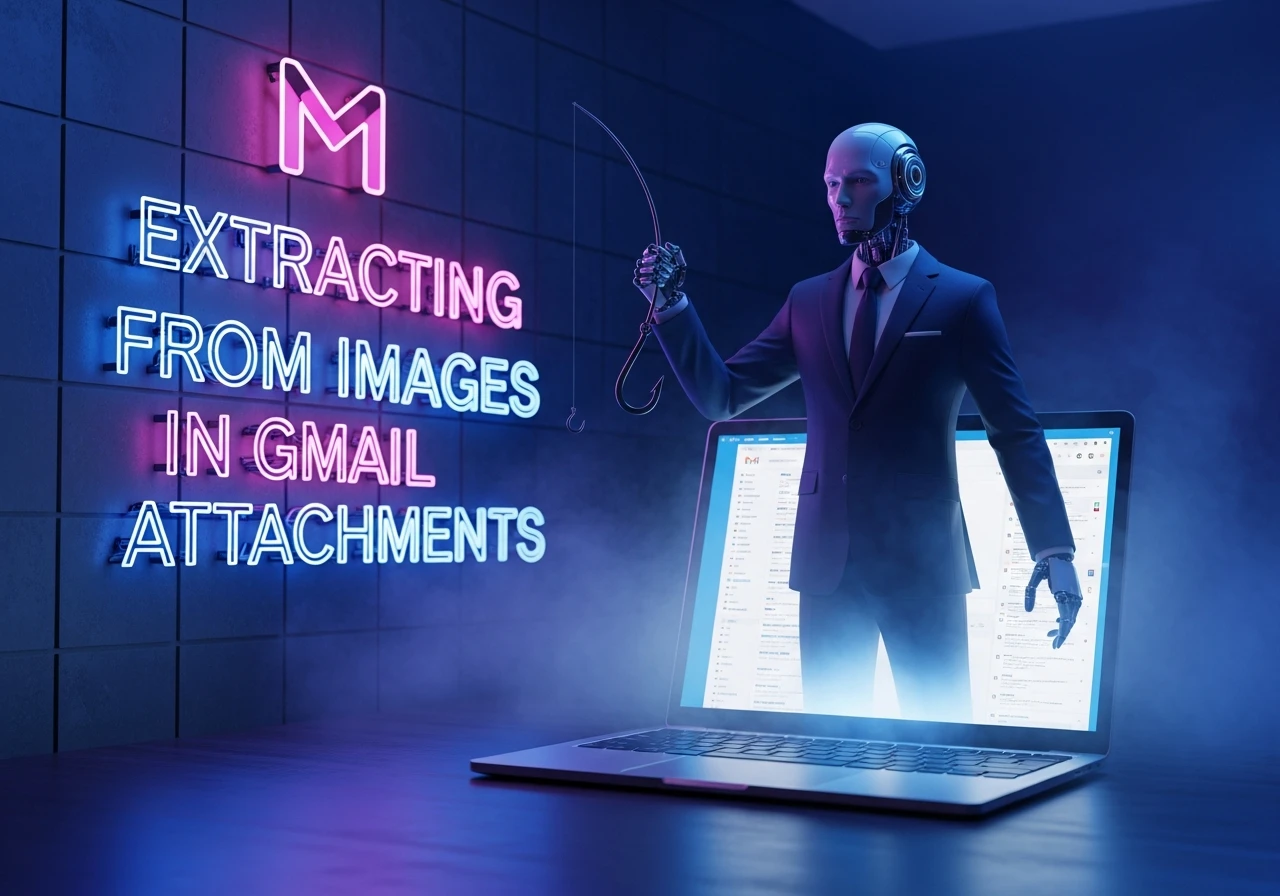
Most OCR automations fail because they OCR everything. Logos, signatures, random screenshots, someone’s cat. The trick is to automate email attachment ocr with ruthless filtering, then pick an OCR engine that matches your constraints, then persist the output somewhere your workflows can actually use.
This post builds a practical pipeline: Gmail intake that only touches .jpg / .png, OCR via Google Cloud Vision API or Tesseract, and storing results as plain .txt files.
The pipeline in one sentence
A Gmail label marks messages worth processing, a worker pulls attachments, it ignores everything except .jpg/.png, runs OCR, writes one .txt file per attachment, and marks the email “processed” so you don’t re-OCR the same invoice forever.
Filter logic to only process specific file types (.jpg/.png)
You want two layers of filtering: Gmail-level (cheap) and code-level (trustworthy).
Gmail-level is done with a label like OCR/Queue applied to emails you want processed. Your script reads only that label. Code-level is where you enforce “only images” using both filename extension and MIME type, because filename lies are common.
Apps Script: only accept .jpg/.png attachments
function isAllowedImage_(att) {
  const name = (att.getName() || "").toLowerCase();
  const contentType = (att.getContentType() || "").toLowerCase();

  const extOk = name.endsWith(".jpg") || name.endsWith(".jpeg") || name.endsWith(".png");
  const mimeOk = contentType === "image/jpeg" || contentType === "image/png";

  return extOk && mimeOk;
}
Yes, .jpeg is included because you will see it in the wild.
Apps Script: pull only queued emails, avoid reprocessing
function fetchQueuedThreads_() {
  const label = GmailApp.getUserLabelByName("OCR/Queue");
  if (!label) throw new Error('Missing label "OCR/Queue"');
  return label.getThreads(0, 25);
}
After processing a thread, remove OCR/Queue and add OCR/Done. That single move prevents duplicate work.
Using Google Cloud Vision API vs. Tesseract
This decision is mostly about constraints: accuracy and convenience vs. local control and cost predictability.
Vision tends to perform better on messy, real-world documents and mixed layouts. Tesseract is strong on clean printed text and gives you full local control, but you’ll spend more time on preprocessing if your inputs are ugly.
Practical comparison
| Criterion | Google Cloud Vision API | Tesseract |
|---|---|---|
| Setup | Cloud project + credentials | Local install + language data |
| Accuracy on messy scans | Often better out of the box | Usually needs preprocessing |
| Handwriting | Better odds (still not magic) | Generally weaker |
| Privacy | Leaves your environment | Stays local |
| Cost | Pay-per-use | Free engine, paid engineering time |
| Scaling | Managed | You own CPU/queueing |
If you’re OCR’ing invoices, receipts, screenshots of forms, and random phone photos, Vision is usually faster to production. If you’re OCR’ing clean images in a controlled pipeline, or you can’t send data to a third party, Tesseract is the default.
OCR option A: Apps Script + Google Cloud Vision API
This route is clean if you’re already living inside Google tools: Gmail intake, Apps Script worker, Drive storage.
Call Vision OCR from Apps Script
function ocrWithVision_(blob) {
  const apiKey = PropertiesService.getScriptProperties().getProperty("VISION_API_KEY");
  if (!apiKey) throw new Error("Missing VISION_API_KEY in Script Properties");

  const url = "https://vision.googleapis.com/v1/images:annotate?key=" + encodeURIComponent(apiKey);
  const base64 = Utilities.base64Encode(blob.getBytes());

  const payload = {
    requests: [{
      image: { content: base64 },
      features: [{ type: "DOCUMENT_TEXT_DETECTION" }]
    }]
  };

  const res = UrlFetchApp.fetch(url, {
    method: "post",
    contentType: "application/json",
    payload: JSON.stringify(payload)
  });

  const json = JSON.parse(res.getContentText());
  const text =
    json?.responses?.[0]?.fullTextAnnotation?.text ||
    json?.responses?.[0]?.textAnnotations?.[0]?.description ||
    "";

  return text.trim();
}
If this is more than a prototype, don’t use a raw API key forever. Use proper auth and lock down who can run the script.
OCR option B: External worker + Gmail API + Tesseract
This is the “keep it local” route. You fetch attachments via Gmail API, OCR them on your box/VM, then write .txt files to disk or your internal storage.
Python: filter extensions, OCR with Tesseract, store results as text files
import base64
from pathlib import Path

import pytesseract
from PIL import Image

ALLOWED_EXT = {".jpg", ".jpeg", ".png"}

def save_text(txt_dir: Path, stem: str, text: str) -> Path:
  txt_dir.mkdir(parents=True, exist_ok=True)
  out = txt_dir / f"{stem}.txt"
  out.write_text(text, encoding="utf-8")
  return out

def ocr_image_file(image_path: Path) -> str:
  img = Image.open(image_path)
  return pytesseract.image_to_string(img).strip()

def process_attachment(filename: str, data_b64url: str, out_dir: Path) -> Path | None:
  ext = Path(filename).suffix.lower()
  if ext not in ALLOWED_EXT:
    return None

  raw = base64.urlsafe_b64decode(data_b64url.encode("utf-8"))
  img_path = out_dir / "images" / filename
  img_path.parent.mkdir(parents=True, exist_ok=True)
  img_path.write_bytes(raw)

  text = ocr_image_file(img_path)

  # include filename stem; in production also include messageId/attachmentId to avoid collisions
  return save_text(out_dir / "ocr_text", img_path.stem, text)
This snippet assumes you already retrieved the attachment bytes (base64url) using Gmail API. In production, include message ID + attachment ID in the file name stem so you never collide when two different emails attach image.png.
Storing the result in a text file
Storing the output is the easy part. The important part is naming and idempotency.
Store OCR output in Google Drive (Apps Script)
function storeTextFile_(folderId, baseName, text) {
  const folder = DriveApp.getFolderById(folderId);
  const filename = baseName.replace(/[^\w\-]+/g, "_").slice(0, 80) + ".txt";
  const file = folder.createFile(filename, text, MimeType.PLAIN_TEXT);
  return file.getId();
}
Store OCR output locally (Python)
That’s already handled via write_text. If you need the results searchable later, store JSON alongside the .txt that includes metadata like sender, subject, received timestamp, and the file hash.
A minimal complete Apps Script worker
This one reads OCR/Queue, OCRs allowed image attachments, writes .txt outputs to Drive, then marks the thread done.
function runOcrQueue() {
  const outFolderId = PropertiesService.getScriptProperties().getProperty("OCR_OUTPUT_FOLDER_ID");
  if (!outFolderId) throw new Error("Missing OCR_OUTPUT_FOLDER_ID");

  const doneLabel = GmailApp.getUserLabelByName("OCR/Done") || GmailApp.createLabel("OCR/Done");
  const queueLabel = GmailApp.getUserLabelByName("OCR/Queue");
  if (!queueLabel) throw new Error('Missing label "OCR/Queue"');

  const threads = queueLabel.getThreads(0, 25);

  threads.forEach(thread => {
    thread.getMessages().forEach(msg => {
      const atts = msg.getAttachments({ includeInlineImages: false, includeAttachments: true });

      atts.forEach(att => {
        if (!isAllowedImage_(att)) return;

        const text = ocrWithVision_(att.copyBlob());
        const base = (att.getName() || "attachment").replace(/\.(jpg|jpeg|png)$/i, "");
        storeTextFile_(outFolderId, base, text);
      });
    });

    thread.removeLabel(queueLabel);
    thread.addLabel(doneLabel);
  });
}
The two failure modes you should expect
OCR returns garbage on low-contrast screenshots. The fix is preprocessing: increase contrast, thresholding, and upscaling before OCR, especially for Tesseract.
You reprocess the same email. The fix is strict labeling and a processed registry. Labeling is usually enough. A registry is useful if multiple workers might race.
That’s it. If you want the “grown-up” upgrade next, it’s adding a lightweight parser that detects document type (invoice vs ID vs receipt) and routes to a different OCR mode and storage folder automatically.
Practitioner take: attachment OCR fails less often because of the OCR engine than because a workflow accepts the wrong files, cannot explain a low-confidence result, or processes the same message twice.
Gmail attachment OCR: production control points
| Stage | Control | What it prevents |
|---|---|---|
| Intake | Allow-list MIME types and attachment size | Processing signatures, logos, and unsupported files |
| Extraction | Record OCR confidence and page count | Quietly accepting unreadable text |
| Routing | Classify document type before export | Sending an invoice to an ID-review process |
| Idempotency | Store Gmail message and attachment IDs | Duplicate downstream records |
Choose the review threshold before launch
Do not choose an OCR provider solely on a demo image. Test your real scans, photos, and multi-language samples, then route low-confidence results to a queue with the original attachment available. The broader automation failure-mode checklist is useful when designing the manual fallback.
FAQ
Should every Gmail image go through OCR?
No. Start with a narrow label, sender, or file-type rule. The right workflow processes documents that will drive a decision or update, not every image in a mailbox.
Google Cloud’s OCR documentation describes the available text-detection modes and request limits.