GitHub Copilot Free Alternatives: 8 AI Coding Assistants You Can Use Today

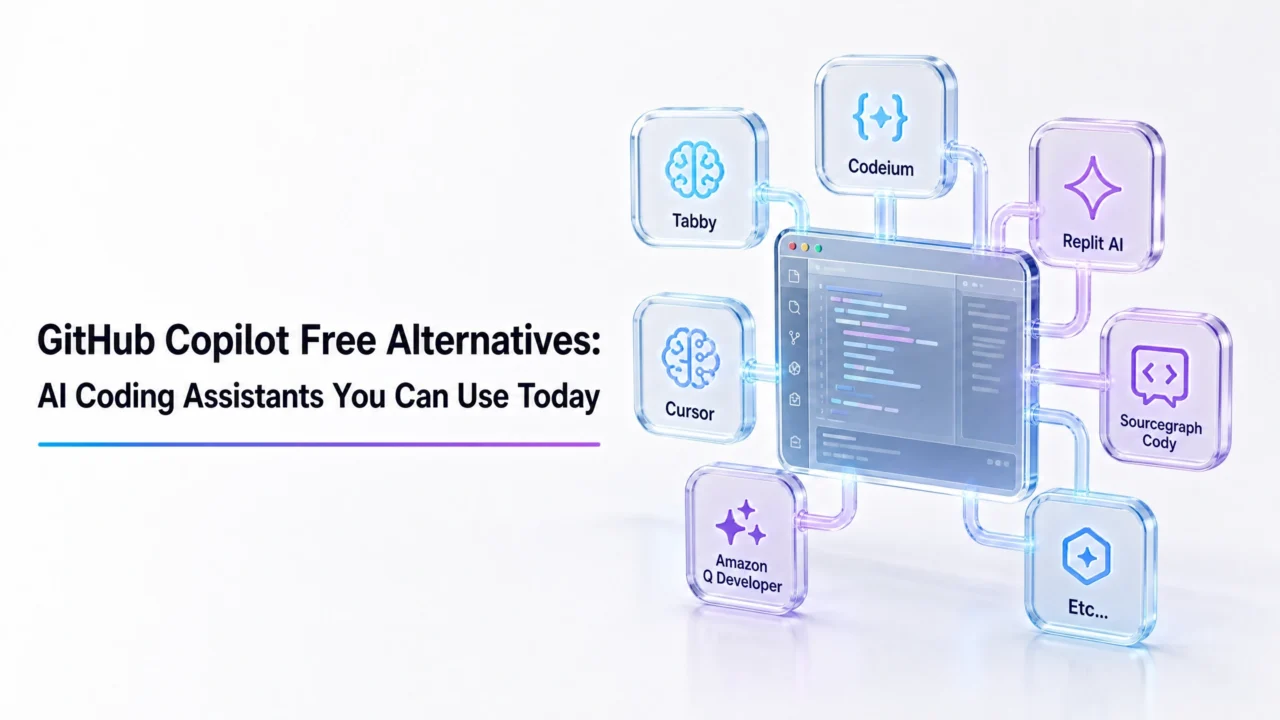
GitHub Copilot is $10 a month for individuals. That is not unreasonable, but it is also not nothing — especially if you are a student, a hobbyist, or someone who just wants AI code completion without committing to another monthly subscription. The field has caught up. There are now eight legitimate free alternatives to GitHub Copilot that cover most of what it does, some with unlimited completions, several with better IDE support than Copilot had two years ago.
⚡ Direct Answer
Codeium is the strongest free Copilot alternative for most developers — unlimited completions, broad IDE support, and a capable chat interface, all on a free individual plan with no usage caps. Amazon Q Developer (formerly CodeWhisperer) is the best free option if you work in AWS environments. Continue.dev is the right pick if you want full control, local model support, and no vendor lock-in. Cursor’s free tier is worth trying if you want an AI-native IDE experience rather than a plugin bolted onto an existing editor.
This post covers what each tool actually gives you on the free tier, which IDEs it works with, and when you would choose it over the others. I have kept the list to tools that are genuinely usable for real development work, not proof-of-concept products that barely function outside a demo.
All 8 Free GitHub Copilot Alternatives: Quick Comparison
| Tool | Free Tier Completions | Chat Feature | IDE Support | Local Model Option | Best For |
|---|---|---|---|---|---|
| Codeium | Unlimited | Yes | VS Code, JetBrains, Neovim, Emacs, + more | No (cloud only) | Best all-round free option |
| Tabnine | Limited (local model) | No (paid) | VS Code, JetBrains, Vim, Sublime | Yes (free tier) | Privacy-focused teams |
| Amazon Q Developer | Unlimited | Yes | VS Code, JetBrains, CLI, AWS Console | No | AWS developers |
| Cursor | 2,000/month | Yes (limited) | Cursor (VS Code fork) | No (cloud) | AI-native IDE experience |
| Continue.dev | Unlimited (your API key) | Yes | VS Code, JetBrains | Yes (Ollama etc.) | Full control, open source |
| Supermaven | Unlimited | No (paid) | VS Code, JetBrains, Neovim | No | Speed-focused completion |
| Cody by Sourcegraph | 200/day | 20 chats/day | VS Code, JetBrains, Neovim | No (free tier) | Large codebases, code search |
| Aider | Unlimited (your API key) | Terminal-based | Terminal / any editor | Yes | CLI-first developers |
1. Codeium — Best Free Copilot Alternative Overall
Codeium’s individual plan is free with no usage limits on code completions. That alone puts it ahead of most competitors on the free tier. Add in support for 70-plus programming languages, a chat interface that understands your codebase context, and extensions for over 40 editors and IDEs, and it is the obvious starting point for anyone replacing Copilot without spending money.
In daily use, Codeium completions are fast and tend to be contextually relevant. It handles boilerplate, function bodies, and repetitive patterns well — which is where you actually want autocomplete to save time. The chat feature can answer questions about code in your current file, explain errors, and refactor on request. Not as powerful as Claude or GPT-4 in isolation, but capable enough for the tasks you actually run during a coding session.
Setting Up Codeium in VS Code
- Open VS Code and go to the Extensions panel (Ctrl+Shift+X / Cmd+Shift+X)
- Search for Codeium and install the official extension
- Click Sign in to Codeium in the status bar — this creates a free account
- Authenticate in the browser and return to VS Code — completions activate immediately
Setting Up Codeium in JetBrains IDEs
- Open Settings → Plugins → Marketplace
- Search Codeium and install
- Restart the IDE, then go to Settings → Codeium → Login
- Authenticate with your free account — the plugin activates on restart
Worth knowing: Codeium’s enterprise product (Windsurf) is a separate AI-native IDE. The free Codeium extension and the Windsurf IDE are different products. If you see references to Windsurf, that is the paid team/enterprise offering — the extension covered here stays free for individual use.
| Details | |
|---|---|
| Free tier limits | Unlimited completions and chat |
| Languages | 70+ |
| IDE support | VS Code, JetBrains suite, Neovim, Emacs, Vim, Sublime Text, Jupyter, and more |
| Chat feature | Yes, included free |
| Local model | No — cloud-based only |
| Data training opt-out | Yes — free users can opt out of telemetry |
2. Tabnine — Best Free Option for Privacy-Conscious Developers
Tabnine’s free tier runs a smaller model locally on your machine. Your code never leaves your device on the free plan — which is a real differentiator if you are working on proprietary code, under an NDA, or in an environment where sending source code to a third-party cloud is a compliance concern.
The trade-off is capability. The local free model is noticeably weaker than Codeium’s cloud model or GitHub Copilot. It handles common patterns and short completions well but struggles with complex multi-line suggestions or understanding project-wide context. For developers where privacy is the priority and they can accept that trade-off, it is the right call. For everyone else, Codeium or Continue.dev with a local model are better options.
Setting Up Tabnine in VS Code
- Install the Tabnine AI Autocomplete extension from the VS Code Marketplace
- Create a free account at tabnine.com when prompted
- The extension will download the local model on first run (this takes a few minutes)
- Completions activate automatically — no API key required for the free tier
Note on Tabnine’s plans: Chat, project-aware context, and the full cloud model are Pro features ($12/month). The free tier is genuinely local and private but significantly more limited. If you need chat or richer suggestions, Codeium’s free tier is the better starting point.
3. Amazon Q Developer — Best Free Option for AWS Workflows
Amazon Q Developer is what Amazon CodeWhisperer became after rebranding in April 2024. The individual free tier still exists and gives you unlimited code completions, a chat interface, security vulnerability scanning, and up to 50 agent task executions per month. That is a generous free tier for individual developers.
Where Amazon Q genuinely pulls ahead of other free tools is AWS integration. If your work involves Lambda functions, CDK, CloudFormation templates, or boto3 — Amazon Q understands that context at a level the other tools on this list do not. It can suggest IAM policy configurations, explain AWS service interactions, and generate infrastructure code with AWS-specific accuracy that a generic code assistant will often get wrong.
Outside of AWS development, it is a competent but unremarkable code assistant. The completions are solid for general Python, Java, TypeScript, and other supported languages, but there is no particular reason to choose it over Codeium if AWS is not in your stack.
Setting Up Amazon Q Developer in VS Code
- Install the Amazon Q extension from the VS Code Marketplace
- Click Sign in and choose Use for free with Builder ID — you do not need an AWS account
- Create a free AWS Builder ID (just an email-based account, separate from your AWS account)
- Authorize the extension in the browser and return to VS Code — completions are active
Also available in: JetBrains IDEs (via the Amazon Q plugin), Visual Studio, the AWS CLI, and directly in the AWS Management Console. JetBrains setup is identical — install the Amazon Q plugin from the Marketplace and authenticate with a Builder ID.
| Details | |
|---|---|
| Free tier limits | Unlimited completions, 50 agent tasks/month, unlimited security scans |
| Languages | 15+ (Python, Java, JavaScript, TypeScript, C#, Go, Rust, PHP, SQL, and more) |
| IDE support | VS Code, JetBrains, Visual Studio, AWS Cloud9, AWS Console |
| Chat feature | Yes, included free |
| AWS-specific features | IAM policy generation, CloudFormation help, security scanning |
| Account required | Free AWS Builder ID (no credit card, no AWS account needed) |
4. Cursor — Best Free Option for an AI-Native IDE
Cursor is a fork of VS Code rebuilt around AI. Rather than bolting an extension onto an existing editor, Cursor makes AI the center of the editing experience. The free Hobby plan gives you 2,000 code completions per month and 50 “slow” chat requests (using GPT-4 or Claude, at a lower priority tier).
The feature that makes Cursor worth trying even on the free tier is Ctrl+K (or Cmd+K): highlight any block of code and describe what you want to change in plain text. Cursor rewrites it inline. It also has a multi-file editing mode that can apply changes across your codebase based on a single natural language instruction — something no extension-based tool does as cleanly.
The limit on the free tier is real. 2,000 completions sounds like a lot but goes quickly if Cursor is your primary editor. Once you hit the monthly cap, you are on GPT-3.5-tier suggestions until the next month. If Cursor clicks for you and the cap is the problem, the Pro plan is $20/month.
Getting Started with Cursor
- Download Cursor from cursor.sh — it installs like a regular application
- On first launch, Cursor offers to import your VS Code extensions and settings — say yes
- Create a free account or sign in with GitHub/Google
- Open any project — AI features are available immediately with the Hobby plan
VS Code migration: Because Cursor is a VS Code fork, your existing extensions, themes, and keybindings transfer over in about 30 seconds. Most developers who try Cursor for the first time are up and running before they finish their coffee.
5. Continue.dev — Best Free Option for Full Control
Continue is an open-source AI coding assistant that works differently from everything else on this list. Instead of connecting to one company’s model, Continue lets you wire it up to any model you want: local models via Ollama, Claude through the Anthropic API, GPT-4 through the OpenAI API, or free-tier models from providers like Groq or Mistral.
The practical implication: Continue itself is free forever. Your costs depend on which model you connect to it. If you run Ollama locally with a model like Code Llama or DeepSeek Coder, the whole setup is free. If you connect it to GPT-4 or Claude, you pay those APIs directly at the rate you use them — which for most developers is less than a Copilot subscription.
This is the most technically involved setup on the list. If you want to download, configure, and maintain a local model, Continue is excellent. If you want to install an extension and start typing, Codeium is a better fit.
Setting Up Continue.dev in VS Code
- Install the Continue extension from the VS Code Marketplace
- On first launch, Continue asks you to choose a model — select Ollama (local) for a fully free setup
- Install Ollama from ollama.com and run
ollama pull codellamain your terminal - Return to VS Code — Continue will detect the running Ollama instance automatically
- To use Claude or GPT-4 instead, open Continue’s config file and add your API key under the relevant provider
Hardware note: Running local models via Ollama works best on machines with at least 16GB RAM. Code Llama 7B runs on most modern laptops. Code Llama 34B gives better results but requires significantly more memory and is much slower without a GPU.
6. Supermaven — Best Free Option for Raw Completion Speed
Supermaven is built around one thing: faster completions than anything else on the market. It uses a proprietary architecture designed specifically for speed, and the free plan gives you unlimited completions with a claimed 1 million token context window — meaning it can process more of your codebase when generating suggestions than most competitors offer even on paid tiers.
The free plan does not include chat. If you want to ask questions about your code or get explanations, that requires an upgrade. For pure autocomplete — the kind of AI assistance where you just want the next few lines to appear instantly and correctly — Supermaven’s free tier is legitimately competitive with GitHub Copilot.
Setting Up Supermaven in VS Code
- Install the Supermaven extension from the VS Code Marketplace
- Click Sign in and create a free account at supermaven.com
- Completions activate immediately — no configuration required
JetBrains setup is identical through the JetBrains Marketplace. Neovim users can install via the official Supermaven Neovim plugin from the GitHub repository.
7. Cody by Sourcegraph — Best Free Option for Large Codebases
Cody is Sourcegraph’s AI coding assistant, and it is built with codebase-wide context in mind rather than just the file you have open. The free personal plan gives you 200 autocomplete suggestions per day and 20 chat or command interactions. That limit is tighter than Codeium or Supermaven, but Cody’s approach to context retrieval is genuinely different.
When you ask Cody a question about your code, it searches across your entire repository — not just the current file — to find relevant context before generating a response. For large or complex codebases where understanding cross-file dependencies matters, Cody tends to produce more accurate answers than a tool that only sees what is open in your editor.
The daily limits are the friction point. If you are a heavy user who queries the assistant dozens of times a day, 20 chat interactions will not last a full working session. For occasional questions on a large project, it is a reasonable free tool.
Setting Up Cody in VS Code
- Install the Cody AI by Sourcegraph extension from the VS Code Marketplace
- Click Sign in and create a free Sourcegraph account (GitHub sign-in works)
- Cody activates automatically — open the sidebar panel to access chat
8. Aider — Best Free Option for CLI-First Developers
Aider is different from everything else on this list. It is a terminal-based coding assistant that works directly with your Git repository — you describe what you want to change, Aider edits the relevant files, and commits the result. No IDE plugin required. Any editor that works with your files will work with Aider.
Aider is free as open-source software. The cost is whatever model you connect it to. It works with GPT-4o, Claude 3.5/3.7 Sonnet, and local models via Ollama. If you use Microsoft Copilot’s free tier for chat and Aider with a local Ollama model for edits, the whole setup costs nothing.
This is not for everyone. The terminal workflow takes adjustment, especially if you are used to inline completions. But for developers who live in the terminal, dislike IDE plugins, or want something that integrates directly with Git at the command level, Aider is genuinely impressive.
Getting Started with Aider
# Install aiderpip install aider-chat
# Run with OpenAI GPT-4o (requires OPENAI_API_KEY)aider --model gpt-4o
# Run with a local Ollama model (no API key needed)aider --model ollama/codellama
Once running, you open files with /add filename.py, describe your changes in plain English, and Aider handles the edits. Git integration is automatic — every change Aider makes becomes a commit you can review, amend, or revert.
IDE Integration Breakdown
One of the most common reasons to look for a Copilot alternative is IDE coverage. Copilot has strong support for VS Code and JetBrains, but support in other editors is patchier. Here is how the free alternatives stack up.
| Tool | VS Code | JetBrains | Neovim / Vim | Emacs | Sublime Text | Terminal / CLI |
|---|---|---|---|---|---|---|
| Codeium | ✅ | ✅ | ✅ | ✅ | ✅ | ❌ |
| Tabnine | ✅ | ✅ | ✅ | ❌ | ✅ | ❌ |
| Amazon Q Developer | ✅ | ✅ | ❌ | ❌ | ❌ | ✅ (AWS CLI) |
| Cursor | N/A (is its own IDE) | ❌ | ❌ | ❌ | ❌ | ❌ |
| Continue.dev | ✅ | ✅ | ❌ | ❌ | ❌ | ❌ |
| Supermaven | ✅ | ✅ | ✅ | ❌ | ❌ | ❌ |
| Cody | ✅ | ✅ | ✅ | ❌ | ❌ | ❌ |
| Aider | Indirect (edits files) | Indirect | Indirect | Indirect | Indirect | ✅ (native) |
Which Free Alternative Should You Choose?
| Your Situation | Best Free Alternative | Reason |
|---|---|---|
| I want the closest free equivalent to Copilot | Codeium | Unlimited completions, broad IDE support, included chat |
| I work heavily in AWS / build on AWS services | Amazon Q Developer | AWS-native intelligence, CloudFormation and IAM support |
| My code is proprietary and I can’t send it to the cloud | Tabnine (free) or Continue.dev + Ollama | Both support fully local operation — Tabnine simpler, Continue more capable |
| I want to try an AI-native IDE before paying for one | Cursor Hobby plan | Best-in-class multi-file editing and inline rewrite experience |
| I want to run everything locally and control the model | Continue.dev + Ollama | Open source, local-first, works with any supported model |
| Speed matters more than features to me | Supermaven | Fastest completion latency, unlimited on free tier |
| I work on a large repo and need codebase-wide context | Cody by Sourcegraph | Cross-repository context retrieval, better accuracy on large codebases |
| I live in the terminal and don’t want an IDE plugin | Aider | Git-native, terminal-based, works with any model you provide |
What Free Alternatives Cannot Match in GitHub Copilot
Being fair about this matters. GitHub Copilot has real advantages that are harder to replicate on free tiers.
| GitHub Copilot Advantage | Free Alternative Gap |
|---|---|
| Copilot Workspace (full task planning to PR) | No free alternative matches this end-to-end agent workflow |
| GitHub pull request integration | Not available in free alternatives |
| Copilot CLI (natural language terminal commands) | Aider covers some of this, but differently |
| Deep GitHub Actions integration | No equivalent in free tools |
| First-party GitHub context (your repos, issues) | Cody comes closest with repo indexing, but limited free tier |
Honest take: For inline code completions and AI chat during development, the free alternatives on this list are competitive with Copilot and sometimes better. For anything deeply integrated with GitHub workflows — PR reviews, issue context, Workspace — Copilot still has advantages that free tools do not replicate yet.
My Recommendation
Start with Codeium. It is the most complete free Copilot replacement for most developers: unlimited completions, chat, broad IDE support, and no practical usage cap. If Codeium covers what you need, you probably do not need to look further.
If you build on AWS, add Amazon Q Developer. The two can coexist — use Codeium for general completions and Amazon Q’s chat for AWS-specific questions and security scanning.
If data privacy is non-negotiable, go with Continue.dev and Ollama. It takes an hour to set up properly, but once it is running you have a fully local, free, and reasonably capable setup that never sends your code anywhere.
Final recommendation: Codeium for most developers (free, unlimited, broad IDE support). Amazon Q Developer if AWS is your primary environment. Continue.dev + Ollama if you need fully local and private. Cursor Hobby if you want to experience what an AI-native IDE actually feels like before deciding whether it is worth paying for. None of these require a credit card to get started.
FAQ: GitHub Copilot Free Alternatives
What is the best free alternative to GitHub Copilot?
Codeium is the best free alternative for most developers. It offers unlimited code completions, a built-in chat interface, and support for over 40 editors and IDEs — all on a permanently free individual plan with no usage caps. Amazon Q Developer is the better free choice specifically for AWS-focused development.
Is Codeium really free with no limits?
Yes, for individual developers. Codeium’s individual plan has no limits on code completions or chat usage. The free plan is their permanent offering for solo developers, not a trial. Team and enterprise features are paid, but individual use has no stated expiry or hidden caps.
What happened to Amazon CodeWhisperer?
Amazon CodeWhisperer was rebranded to Amazon Q Developer in April 2024. The free individual tier still exists and gives you unlimited code completions, chat, security vulnerability scanning, and 50 agent task executions per month — all free with a no-cost AWS Builder ID account.
Can I run an AI coding assistant completely locally for free?
Yes. Continue.dev paired with Ollama lets you run a local language model on your machine with no cloud connection required. Install Continue in VS Code or JetBrains, install Ollama, pull a code-focused model like Code Llama, and the entire setup runs on your hardware at no cost. Tabnine’s free tier also runs a smaller model locally.
Do these tools work in JetBrains IDEs?
Codeium, Tabnine, Amazon Q Developer, Continue.dev, Supermaven, and Cody all have JetBrains plugins available through the JetBrains Marketplace. Cursor is a standalone IDE and does not have a JetBrains integration. Aider is terminal-based and works independently of any IDE.
Is Cursor free?
Cursor has a free Hobby plan that includes 2,000 code completions per month and 50 slow chat requests using GPT-4 or Claude. When the monthly limit is reached, the free tier falls back to lower-capability completions. The paid Pro plan ($20/month) removes most limits and upgrades to faster model access.
Which free AI coding assistant is best for Python?
All eight tools on this list support Python well. For pure completion quality in Python, Codeium and Amazon Q Developer are both strong free options. If you do a lot of data science or Jupyter notebook work, Codeium has better Jupyter support than most alternatives.
Can I use multiple free AI coding tools at the same time?
You can have multiple extensions installed, though running more than one active completion provider simultaneously can cause conflicts. A practical approach: use Codeium as your primary completion provider and Amazon Q Developer’s chat panel for AWS-specific questions and security scanning, since they occupy different interaction modes.