Free AVIF to JPG Online Tool: Best Ways to Convert AVIF Images Without Losing Your Mind

Last Updated on July 2, 2026 by Triumphoid Team
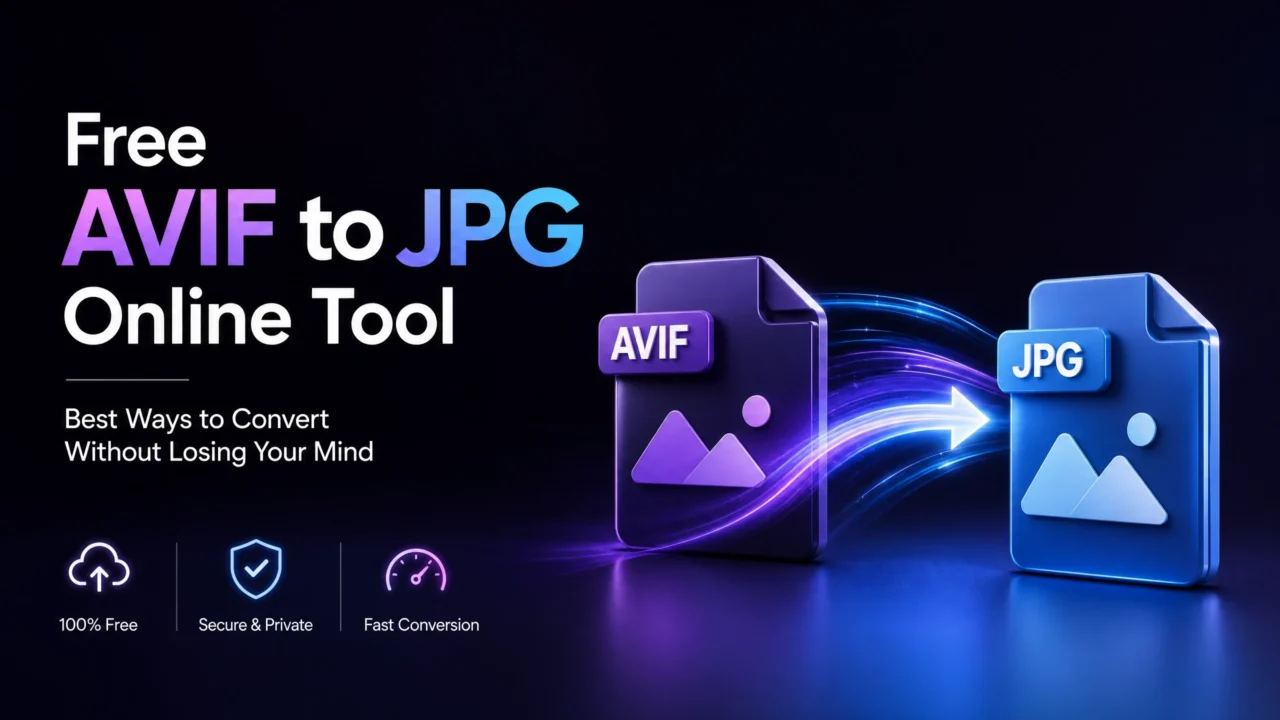
AVIF is excellent when you care about small file sizes, modern web performance, and crisp image quality. JPG is still the format everyone understands: old software, email clients, social media uploaders, CMS tools, marketplaces, print services, and that one mysterious admin panel built in 2014.
So yes, AVIF is smarter. JPG is more universally accepted. Sometimes the smartest thing to do is convert the clever new format into the boring old one that never causes drama.
This guide reviews the best AVIF to JPG converter tools, explains when conversion makes sense, and includes a small browser-based AVIF to JPG converter you can try directly on this page.
Try It: AVIF to JPG Converter
Select an AVIF file and convert it to JPG in your browser. The image is processed locally on your device, not uploaded to a server.
Waiting for an AVIF image.
What Is an AVIF File?
AVIF stands for AV1 Image File Format. In plain English: it is a modern image format designed to keep image quality high while making file sizes smaller. That is why AVIF is popular with performance-focused websites, image-heavy blogs, ecommerce stores, and anyone trying to make pages load faster.
AVIF can support features that JPG does not handle well, including transparency, high dynamic range, and better compression. But there is a catch: not every app, upload form, image editor, email client, or old CMS knows what to do with it.
That is where JPG comes in. JPG is not glamorous. It does not support transparency. It is lossy. It is older than half the internet. But it works almost everywhere.
Why Convert AVIF to JPG?
You should convert AVIF to JPG when compatibility matters more than maximum compression.
- You need to upload an image somewhere that rejects AVIF. Some platforms still only accept JPG, PNG, or WebP.
- You want to edit the image in older software. Not every desktop editor handles AVIF cleanly.
- You are sending images by email. JPG is safer for clients, teams, and less technical users.
- You need a fallback version for a website. AVIF is good for modern browsers, but JPG fallback is still useful.
- You are preparing images for print or marketplace listings. JPG is still the standard boring workhorse.
The simple rule: use AVIF when you control the website and care about performance. Use JPG when the image needs to survive in the messy outside world.
AVIF vs JPG: Quick Comparison
| Feature | AVIF | JPG |
|---|---|---|
| Best for | Modern web images and compression | Compatibility and sharing |
| File size | Usually smaller | Usually larger |
| Image quality | Excellent at small sizes | Good, but can show compression artifacts |
| Transparency | Supported | Not supported |
| Browser support | Good in modern browsers | Universal |
| Software support | Still inconsistent in older apps | Almost universal |
| Best SEO use | Fast-loading modern image delivery | Fallback images, uploads, thumbnails, social compatibility |
Best AVIF to JPG Converter Tools Reviewed
There are dozens of AVIF converters online. Most do the same basic thing: upload file, choose output, download JPG. The difference is privacy, batch support, quality settings, speed, and whether you need something simple or something serious.
1. Squoosh — Best for Privacy and Visual Control
Squoosh is one of the best tools for people who care about image quality. It runs in the browser, lets you compare compression results, and is especially useful if you want to see how different settings affect the final file.
The main advantage is privacy. Your image is processed locally in your browser, so it does not need to be uploaded to a conversion server. That makes Squoosh a strong choice for personal images, client graphics, screenshots, or anything you do not want floating through random upload tools.
Best for: privacy, image optimization, manual quality control.
Not ideal for: people who want the fastest possible bulk conversion workflow.
2. CloudConvert — Best All-Round Online Converter
CloudConvert is one of the better-known online file conversion platforms. For AVIF to JPG, it is clean, straightforward, and gives useful controls such as quality, resolution, and file size options.
It is a good choice when you want a reliable browser-based tool and do not want to install anything. The interface is simple enough for casual users, but still gives more control than the lowest-effort upload-and-download converters.
Best for: quick online conversion with extra settings.
Not ideal for: sensitive files, because cloud conversion means uploading the image to a third-party service.
3. Convertio — Best for Simple One-Off Conversion
Convertio is built for convenience. Upload the AVIF, choose JPG, convert, download. It works from the browser and does not require technical knowledge.
The tradeoff is that conversion happens remotely on Convertio servers, so it is better for non-sensitive images: blog graphics, stock images, public screenshots, product photos, and casual conversions.
Best for: quick one-off AVIF to JPG conversion.
Not ideal for: private images or large professional batches.
4. Ezgif — Best for Animated AVIF and Extra Editing Options
Ezgif is useful because it is not just a converter. It also includes editing tools for resizing, cropping, optimizing, and handling animated formats. Its AVIF to JPG tool is especially useful when you need a simple conversion and want a few extra controls, such as JPG quality or background color for transparent images.
It is also one of the more practical choices if you are dealing with animated AVIF sequences, because many basic converters are designed only for still images.
Best for: animated AVIF, quick edits, transparent background handling.
Not ideal for: polished professional workflow or very large files.
5. FreeConvert — Best for Batch Online Conversion
FreeConvert is another easy browser-based option. Its main appeal is batch conversion: choose multiple AVIF files, convert them, and download the JPG versions.
For casual users, this is usually enough. For professional users, the limits, upload speed, privacy concerns, and compression control may matter more.
Best for: converting several AVIF files online without installing software.
Not ideal for: private client images or high-volume automated conversion.
6. XnConvert — Best Desktop Batch Converter
XnConvert is the better option when you have a folder full of images and do not want to feed them into an online converter one by one. It is a desktop batch image converter that supports many image formats, including AVIF and JPG.
It also allows batch actions such as resizing, cropping, rotating, adjusting colors, renaming files, and compressing images. That makes it more useful for photographers, bloggers, ecommerce workers, and anyone processing images regularly.
Best for: desktop batch conversion and repeat image workflows.
Not ideal for: users who only need to convert one file and do not want to install software.
7. ImageMagick — Best for Developers and Automation
ImageMagick is the serious technical option. It is a command-line image manipulation suite used for converting, resizing, optimizing, and automating image workflows.
For example, a developer can convert AVIF to JPG with a command like this:
magick input.avif output.jpgFor a full folder, the workflow can be scripted. That makes ImageMagick useful for websites, servers, archives, and bulk media processing.
One caveat: AVIF support depends on how ImageMagick is installed and whether the required image libraries are available. If you get an AVIF decoder error, the problem is usually not your image. It is the local ImageMagick setup.
Best for: developers, servers, automation, bulk processing.
Not ideal for: beginners who want a button, not a terminal.
Best AVIF to JPG Converter by Use Case
| Use Case | Best Tool | Why |
|---|---|---|
| Private image conversion | Squoosh | Runs locally in the browser |
| Simple online conversion | Convertio | Fast and beginner-friendly |
| More control online | CloudConvert | Quality and size options |
| Animated AVIF | Ezgif | Better support for animation workflows |
| Batch desktop conversion | XnConvert | Good for many files and repeat tasks |
| Server or command-line workflow | ImageMagick | Scriptable and powerful |
| Fast single image on this page | Triumphoid converter | No upload, no account, no clutter |
How to Convert AVIF to JPG Without Ruining Image Quality
Converting AVIF to JPG is easy. Converting it badly is even easier.
JPG is a lossy format, which means the image is recompressed when exported. If you choose a very low quality setting, you may see blocky artifacts, color banding, smudged details, or ugly edges around text and graphics.
- Use 85–95% JPG quality for most images. This is usually the sweet spot between file size and visible quality.
- Use 95–100% for screenshots, UI images, and text-heavy graphics. Text gets ugly fast when over-compressed.
- Use a white background for transparent AVIF files. JPG does not support transparency, so transparent areas must become a solid color.
- Do not repeatedly convert the same JPG. Every recompression can degrade the image.
- Keep the original AVIF file. Treat the JPG as the compatibility copy, not the master file.
Should You Use AVIF or JPG on a Website?
For modern websites, the best answer is usually not “AVIF or JPG.” It is “AVIF first, JPG fallback.”
AVIF is useful for performance because it can reduce image weight dramatically. Smaller images help pages load faster, which is good for users and can indirectly support SEO through better page experience.
But JPG fallback still matters when you care about maximum compatibility. A practical setup is to serve AVIF to browsers that support it and keep JPG as the backup.
In HTML, that can look like this:
<picture>
  <source srcset="image.avif" type="image/avif">
  <img src="image.jpg" alt="Descriptive image alt text" width="1200" height="800">
</picture>
This gives modern browsers the smaller AVIF file while still giving everyone else the JPG version. Sensible. Elegant. Slightly less likely to ruin your afternoon.
AVIF to JPG on Windows
For Windows users, the easiest method is an online converter such as CloudConvert, Convertio, or Ezgif. If you convert images often, use XnConvert instead. It is better for folders, batch resizing, renaming, and repeat workflows.
Developers can use ImageMagick, but AVIF support depends on the installed build. If the command fails, check whether your installation includes AVIF/HEIF support.
AVIF to JPG on Mac
On Mac, browser-based tools are usually the fastest option. Squoosh is a good privacy-friendly choice because it processes images locally. XnConvert is better if you need batch conversion.
For technical users, ImageMagick can also work on macOS, usually installed through a package manager. Again, the important detail is whether your local build supports AVIF decoding.
AVIF to JPG on Linux
Linux users have the best technical options. ImageMagick, libavif tools, and other command-line workflows are useful for bulk conversion and automation. For casual use, the browser tools still work perfectly well.
Example ImageMagick command:
magick input.avif -quality 92 output.jpgFor multiple files, you can script the conversion. Just keep your original AVIFs, because JPG conversion is not reversible in a quality-preserving way.
Common AVIF to JPG Problems
The JPG Has a Black Background
Your AVIF probably had transparency. JPG does not support transparency, so the converter has to replace transparent pixels with a background color. Choose white, light grey, or a color that matches your website background.
The Image Looks Blurry After Conversion
The JPG quality setting is probably too low, or the image was resized during conversion. Try quality 90–95 and keep the original dimensions.
The Converter Says the File Is Not Supported
Either the file is damaged, the converter does not support that AVIF variant, or your browser cannot decode the file. Try another tool such as CloudConvert, Ezgif, or XnConvert.
The File Size Gets Bigger
That is normal. AVIF is usually more efficient than JPG. When you convert AVIF to JPG, you are often trading small file size for wider compatibility.
FAQ: AVIF to JPG
Is AVIF better than JPG?
For compression and modern web performance, yes. For universal compatibility, no. AVIF is technically more advanced, but JPG is accepted almost everywhere.
Does converting AVIF to JPG reduce quality?
Usually yes, because JPG uses lossy compression. The quality loss can be minimal if you export at a high setting such as 90–95.
Can JPG keep AVIF transparency?
No. JPG does not support transparent backgrounds. Transparent areas need to be filled with a solid color during conversion.
What is the best free AVIF to JPG converter?
For privacy, Squoosh is one of the best choices. For simple online conversion, Convertio and CloudConvert are convenient. For batches, XnConvert is the stronger desktop option.
Can I convert AVIF to JPG without uploading the file?
Yes. Use a browser-local tool such as Squoosh, a desktop app such as XnConvert, or the small converter embedded on this page. Local conversion is better for private or client-sensitive images.
Should I delete the AVIF after converting to JPG?
No. Keep the AVIF as the original file. Use the JPG as a compatibility copy.
Verdict: The Best Way to Convert AVIF to JPG
Use Squoosh or a local browser converter when privacy matters. Use CloudConvert or Convertio when you need a quick online conversion. Use Ezgif for animated AVIF or extra editing controls. Use XnConvert when you have many images. Use ImageMagick when you want automation and do not fear the terminal.
AVIF is the better modern web format. JPG is the better survival format. Keep both when possible: AVIF for performance, JPG for compatibility.
Useful Links