Automating WordPress Featured Images with n8n and AI

Last Updated on September 13, 2026 by Triumphoid Team
⚡ TL;DR
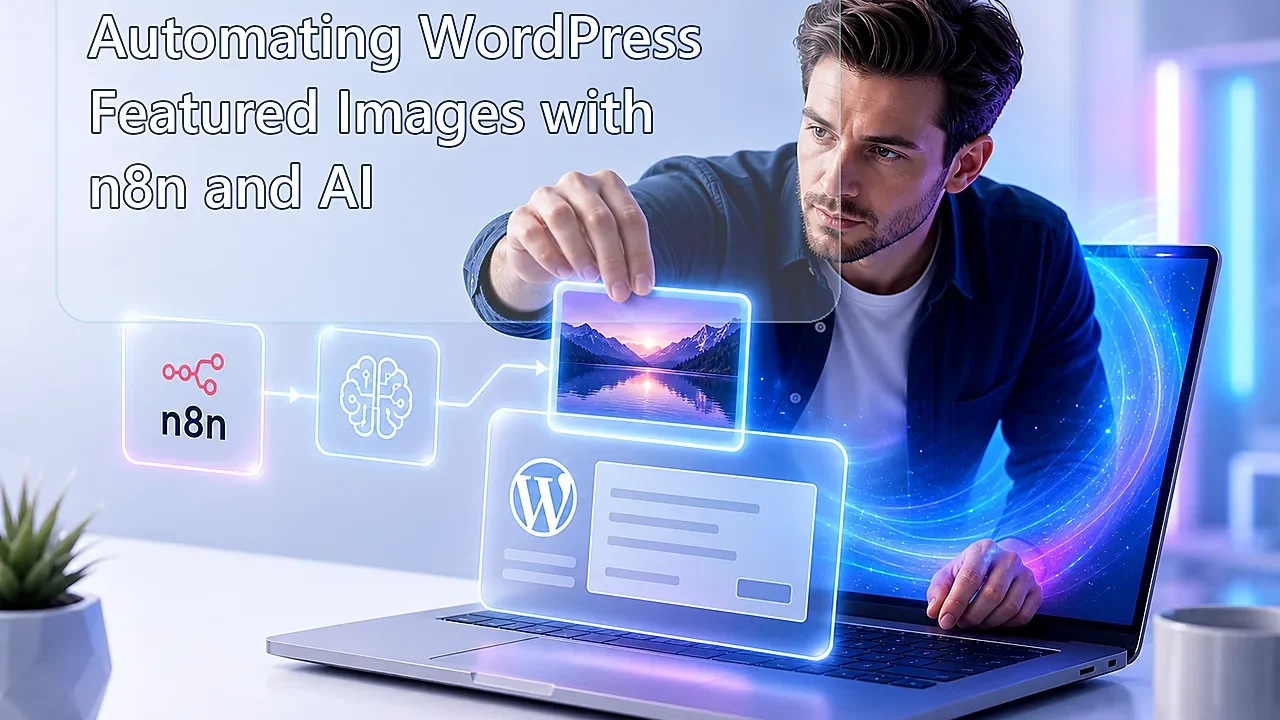
To automate WordPress featured images with n8n and AI, the clean workflow is simple: generate an image from a text prompt, keep the file as binary data inside n8n, upload that file to the WordPress Media Library through the native REST API, capture the returned media ID, then send a second API request to create or update the post with that media ID as featured_media. In plain English: AI image generation → WordPress Media Library upload → post assignment. No plugin circus. No fragile media connector. Just a proper API workflow.
There’s a bad habit in WordPress automation land: people assume featured images need a plugin because media handling feels annoying. It doesn’t. It needs a grown-up workflow.
If your stack already uses n8n, adding another WordPress media plugin just to shuttle image files around is usually pointless. The smarter route is direct API-based media ingestion. Generate the image, upload it, assign it, done. Clean chain of custody. Fewer moving parts. Much easier to debug when something breaks.
And yes, this matters more in 2026 than it did before. Content teams are leaning harder into automated draft assembly, and that makes featured image automation less of a cute extra and more of a production requirement. A post pipeline that writes drafts but leaves every featured image blank is not automation. It is unfinished admin work wearing a suit.
What automate WordPress featured images actually means
To automate WordPress featured images means you programmatically create or obtain an image, upload it into the WordPress Media Library, then attach that image to a post by setting the post’s featured_media field through the REST API. WordPress handles media objects and posts as separate resources, which is why the workflow always has at least two API steps: one for the media item, one for the post assignment.
That separation matters. A featured image is not just “a file uploaded somewhere.” It is a media object inside WordPress with its own attachment ID. Without that ID, the post has nothing to point to.
The architecture
| Step | What happens | Why it matters |
|---|---|---|
| 1 | n8n receives or creates post data | Gives the workflow title, excerpt, angle, or prompt input |
| 2 | AI generates an image from text | Produces the visual asset without manual design work |
| 3 | n8n stores the file as binary data | Makes the image uploadable to WordPress through API |
| 4 | HTTP Request uploads the image to /wp-json/wp/v2/media | Creates a real WordPress media attachment |
| 5 | WordPress returns the media ID | This is the attachment handle you need |
| 6 | HTTP Request creates or updates the post with featured_media | Binds the uploaded asset to the article |
Mechanically, that’s the whole thing. Not mystical. Just API choreography.
Why binary data matters in n8n
This is where people get tripped up.
n8n treats files as binary data. If your image node generates a picture but you never pass that file forward as binary, WordPress won’t receive an image upload. It will receive metadata, which is useless for the Media Library.
That means your workflow should not think in terms of “I have an image URL somewhere.” It should think in terms of “I have a binary file object that can be uploaded.” Tiny mental shift. Huge reduction in pain.
The recommended n8n workflow
Here is the version that actually scales:
| Node | Function | Output |
|---|---|---|
| Trigger | Starts the workflow with post title, summary, or prompt seed | JSON |
| Set / Edit Fields | Builds a strong image prompt from the article context | JSON |
| AI image generation | Creates an image from the prompt | Binary image file |
| HTTP Request: upload media | Sends the binary image to WordPress media endpoint | WordPress attachment object |
| HTTP Request: create/update post | Sets featured_media to the returned attachment ID | WordPress post object |
That is the full native route. No WordPress plugin layer needed.
Workflow: text-to-image generation to WordPress Media Library
The workflow should do the following:
| Stage | Action | Outcome |
|---|---|---|
| Prompt assembly | Use the article title, summary, tags, or angle to create the image brief | The AI gets context instead of guessing blindly |
| Image generation | Send the prompt to your image model | A fresh visual asset is created |
| Binary handoff | Keep the generated image as binary data inside n8n | The file is ready for upload |
| Media upload | POST the binary file to the WordPress media endpoint | A real attachment is created in the Media Library |
| ID capture | Read the returned media object | You get the attachment ID |
| Post assignment | Create or update the draft with the featured_media field | The post now has a proper featured image |
A practical image prompt for this workflow might look like this:
Create a clean editorial featured image for a blog post titled:
"How to Automate WordPress Featured Images with n8n and AI"

Style:
Modern, high-contrast, clean SaaS editorial style, no text overlays, no watermarks.

Subject:
A workflow dashboard connected to WordPress media upload and AI image generation.

Aspect ratio:
16:9
The point is not artistry. The point is predictable output that looks like a real blog hero image instead of a hallucinated poster from another dimension.
Uploading the image to the WordPress Media Library
The practical upload logic is simple: authenticate to WordPress, send the image file, set the filename and MIME type properly, and capture the returned id.
That id is your featured image attachment ID.
This is where people often overcomplicate things. They think they need to create the post first, then somehow “sync” the image later through a plugin. No. Upload the image, get the media ID, assign it. WordPress already knows what to do with that object.
WordPress auth setup
For a clean no-plugin approach, use WordPress credentials that work with the REST API and keep the upload flow authenticated. Use a dedicated WordPress service user if you care about traceability. Which you should.
This matters even more in media-heavy automations because when something goes wrong, you want a clean audit trail showing which workflow account created which attachment and which post.
HTTP Request node: media upload pattern
For WordPress media upload, configure the n8n HTTP Request node roughly like this:
| Setting | Value |
|---|---|
| Method | POST |
| URL | https://yourdomain.com/wp-json/wp/v2/media |
| Authentication | Your WordPress REST credentials |
| Send Body | Enabled |
| Body Content Type | Binary or form-data depending on your setup |
| Binary Property | The image binary field from the previous node |
| Headers | Filename and MIME type where needed |
The important thing is this: the node must send the actual image file, not just a JSON reference to a file that once existed in another node.
HTTP Request node: assign featured image to the post
Once WordPress returns the uploaded media object, you grab its id and send a second request to either create a new draft post or update an existing one.
Example JSON body for post creation:
{
  "title": "Automating WordPress Featured Images with n8n and AI",
  "status": "draft",
  "content": "<p>Your draft content here.</p>",
  "featured_media": 1234
}
That 1234 is the attachment ID returned by the media-upload step. That is the moment the workflow stops being “image generation” and becomes real CMS automation.
Example end-to-end Node.js logic
If you want the logic laid out more explicitly, here is a simple example showing the exact chain: generate image, upload to WordPress, then create a draft with that image attached.
const WP_URL = process.env.WP_URL;
const WP_USERNAME = process.env.WP_USERNAME;
const WP_APP_PASSWORD = process.env.WP_APP_PASSWORD;
const OPENAI_API_KEY = process.env.OPENAI_API_KEY;

async function generateImage(prompt) {
  const res = await fetch("https://api.openai.com/v1/images/generations", {
    method: "POST",
    headers: {
      "Authorization": `Bearer ${OPENAI_API_KEY}`,
      "Content-Type": "application/json",
    },
    body: JSON.stringify({
      model: "gpt-image-1",
      prompt,
      size: "1536x1024"
    }),
  });

  if (!res.ok) {
    throw new Error(`Image generation failed: ${await res.text()}`);
  }

  const data = await res.json();
  const imageBase64 = data.data[0].b64_json;
  return Buffer.from(imageBase64, "base64");
}

async function uploadToWordPress(imageBuffer, filename = "featured-image.png") {
  const auth = Buffer.from(`${WP_USERNAME}:${WP_APP_PASSWORD}`).toString("base64");

  const res = await fetch(`${WP_URL}/wp-json/wp/v2/media`, {
    method: "POST",
    headers: {
      "Authorization": `Basic ${auth}`,
      "Content-Disposition": `attachment; filename="${filename}"`,
      "Content-Type": "image/png",
    },
    body: imageBuffer,
  });

  if (!res.ok) {
    throw new Error(`Media upload failed: ${await res.text()}`);
  }

  return await res.json();
}

async function createDraftWithFeaturedImage(title, content, mediaId) {
  const auth = Buffer.from(`${WP_USERNAME}:${WP_APP_PASSWORD}`).toString("base64");

  const res = await fetch(`${WP_URL}/wp-json/wp/v2/posts`, {
    method: "POST",
    headers: {
      "Authorization": `Basic ${auth}`,
      "Content-Type": "application/json",
    },
    body: JSON.stringify({
      title,
      content,
      status: "draft",
      featured_media: mediaId,
    }),
  });

  if (!res.ok) {
    throw new Error(`Post creation failed: ${await res.text()}`);
  }

  return await res.json();
}

async function run() {
  const prompt = "A modern editorial blog featured image showing WordPress automation, API workflow nodes, and AI image generation, clean SaaS style, no text";
  const imageBuffer = await generateImage(prompt);
  const media = await uploadToWordPress(imageBuffer, "wp-featured-image.png");
  const post = await createDraftWithFeaturedImage(
    "Automating WordPress Featured Images with n8n and AI",
    "<p>This draft was created with an AI-generated featured image attached automatically.</p>",
    media.id
  );

  console.log({ mediaId: media.id, postId: post.id, postLink: post.link });
}

run().catch(console.error);
This example is useful because it makes the real dependency chain obvious. No image upload means no media ID. No media ID means no featured image assignment. Brutally simple.
Why this beats plugin-based media automation
Because plugins love hiding the actual mechanism.
You click a checkbox, maybe map a field, maybe not, and when it fails you have no idea whether the problem is file transport, MIME type, auth, media object creation, or post assignment.
Direct API-based media automation is less glamorous, but far more honest.
| Approach | What you gain | What you lose |
|---|---|---|
| Direct n8n + REST API workflow | Clear request chain, easier debugging, fewer dependencies | Slightly more setup work |
| Plugin-based media connector | Fast initial setup | Less visibility, more update risk, more black-box behavior |
What the docs don’t tell you
Media upload and featured image assignment are separate actions. People expect one magical request to do everything. WordPress does not work that way. The media attachment must exist first. Then the post can reference it.
A valid image file is not the same as a visible URL. If your AI tool gives you a URL but n8n never downloads or converts that image into binary data for the upload step, WordPress does not get a file. It gets a broken handoff.
Filenames and MIME types matter more than people expect. A sloppy upload can still “work” but create messy attachment records, wrong file handling, or later compatibility issues in themes and image processing chains.
Featured image automation should default to draft workflows. Do not auto-publish image-driven posts without a review step unless you enjoy discovering surreal six-fingered stock-photo nightmares on your homepage.
🛠 Pro-Tip
Store the image-generation prompt alongside the media upload metadata or in post meta. That gives editors a traceable record of how the asset was produced, and it makes it much easier to regenerate a matching image later without reverse-engineering the visual brief from the final file.
Our Experience with automate WordPress featured images
Our experience with automate wordpress featured images workflows is that the biggest mistake is treating the image as decoration instead of as a first-class content object.
Teams automate titles, drafts, slugs, summaries, even categories, then leave the image flow half-manual because media handling feels awkward. That creates a weird bottleneck where the workflow is technically “automated” but still depends on a human to complete the post package. It slows publishing, makes queues uglier, and creates needless inconsistency in the archive.
The strongest setups do the opposite. They treat the featured image as part of the draft object from the start. The workflow generates the asset, uploads it to the Media Library, attaches it, and only then hands the draft to an editor. That makes the post review process much faster because the editor is reviewing a nearly complete content object, not a skeleton with missing limbs.
And honestly, that is the bigger shift happening now. The winning content pipelines are not just generating text. They are assembling complete draft entities: title, body, excerpt, taxonomy, and image package. That is what real publishing automation looks like.
The uncomfortable question is whether your current WordPress workflow is actually automated, or whether it still quietly depends on humans to patch the most visible part of the post after the machine claims it’s finished.