
Last Updated on April 15, 2026 by Triumphoid Team
What’s the differece betwwen business process and a workflow? A business process vs workflow model is a standardized way of separating high-level outcomes from the smaller repeatable automations that power them, so you can document ownership, map data between tools, and safely automate steps without breaking compliance, reporting, or core customer experience everywhere, consistently.
In other words:
- Process = Why + What outcome
- Workflow = How + Which tools + When it runs
If you don’t separate the two, 2026 will eat you alive: AI co-pilots, real-time attribution, and ML fraud filters all assume you know what you’re doing before they help you automate how.
The Setup: What You Need Before You Start
Have these ready before you touch any automation:
- Access to your primary source-of-truth tools
- CRM or sales hub (HubSpot, Pipedrive, Salesforce)
- Core revenue/ops platform (e.g., affiliate tracking, subscription billing, or product analytics)
- A documentation space
- Airtable / Notion / Confluence (we usually pick Airtable or Notion)
- Access to your automation layer
- Make.com or Zapier (plus login + org-wide view of scenarios/Zaps)
- A list of 5–7 core business processes you actually care about in the next 12 months
- Example: “Onboard new affiliate,” “Launch new paid campaign,” “Close won > implement customer,” “Flag and review fraud,” “Monthly commission run”
- One person who is allowed to say:
- “This is the process. Everything else is just a workflow attached to it.”
Have that? Good. Now we build.
The Build: Step-by-Step
Step 1 – Inventory Processes, Not Tools
We start text-only. No Make.com tabs yet.
- Open your documentation tool (Notion page or Airtable base).
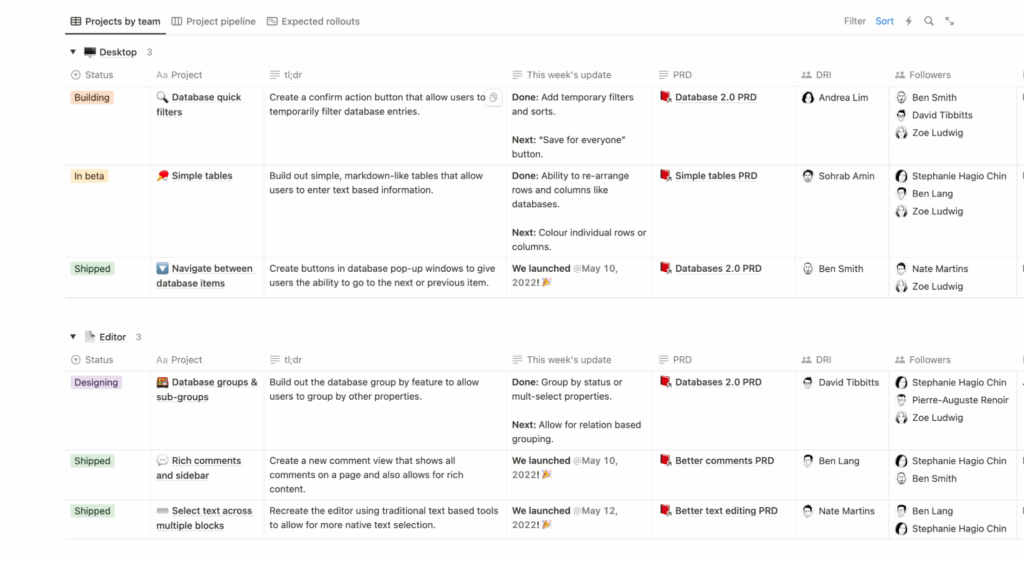
- Create a table called
Business Processeswith these fields:Process Name(text)Outcome / Definition of Done(long text)Owner(single select / person)SLA / Time Bound(text, e.g., “< 24h from trigger”)Primary Data Source(select: CRM, Affiliate Platform, Billing, etc.)Risk Level(Low / Medium / High – think compliance, money movement, fraud)
- Add 5–7 rows for actual processes. Example:
- “Approve new affiliate partner”
- “Launch new campaign”
- “Qualify and route inbound lead”
- “Payout commissions for previous month”
- “Review high-risk traffic / fraud alerts”
You are not allowed to write tools here yet. “Slack notification” is not a process. “Notify people when high-risk affiliate is detected” is part of the process “Review high-risk traffic.”
Step 2 – Extract Workflows From Each Process
Now we zoom in.
Pick one process. Example: “Approve new affiliate partner.”
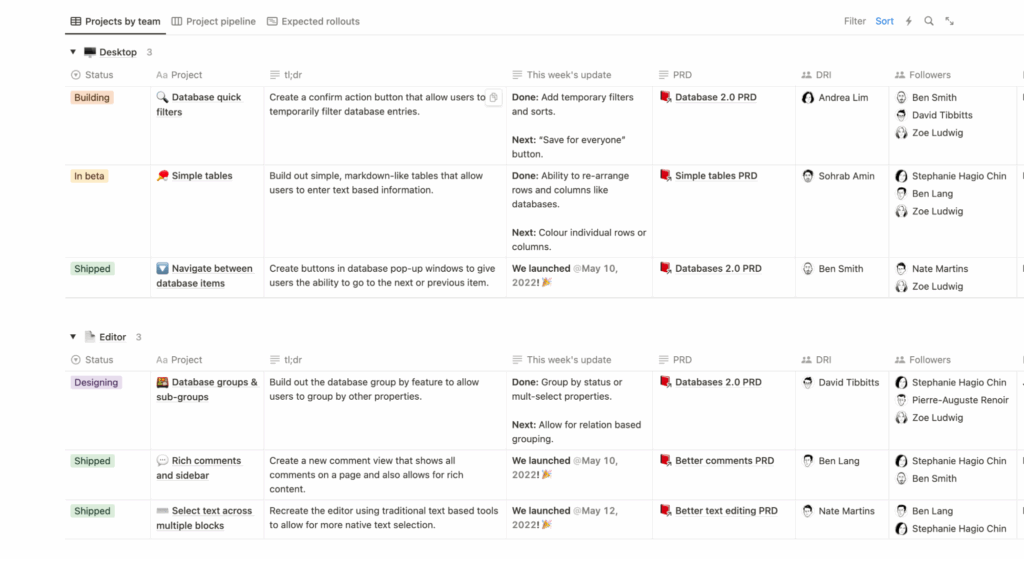
Create a second table (or page) called Workflows with fields:
Workflow NameParent Process(relation toBusiness Processes)Trigger Event(e.g., “New application submitted in Affiliate Platform”)Tool / Platform(Make.com, Zapier, Native automation, etc.)Direction(Tool A → Tool B, e.g., Scaleo → Slack)Automation Type(Sync, Notification, Enrichment, Approval, Cleanup)Status(Planned / Active / Deprecated)
Now, for “Approve new affiliate partner”, we might define:
- Workflow A – “New Application Intake”
- Parent Process: Approve new affiliate partner
- Trigger: New signup form submitted
- Tool / Platform: Make.com
- Direction: Website form → CRM + Affiliate Platform
- Automation Type: Sync
- Workflow B – “Compliance Pre-Check”
- Parent Process: Approve new affiliate partner
- Trigger: Affiliate status = “Pending Review”
- Tool / Platform: Make.com
- Direction: Affiliate Platform → AML/KYC API → CRM
- Automation Type: Enrichment
- Workflow C – “Decision + Notifications”
- Parent Process: Approve new affiliate partner
- Trigger: Status changed to Approved / Rejected
- Tool / Platform: Zapier
- Direction: Affiliate Platform → Slack + Email + Project Tool
- Automation Type: Notification
Now we’re ready to wire actual automation.
Step 3 – Implement a Single Workflow in Make.com (Concrete Build)
Let’s implement Workflow C – Decision + Notifications in Make.com.
Goal: Every time a new affiliate is approved or rejected, the right humans are notified, and analytics are updated. No manual copy-paste.
- Create the Scenario
- Go to Make.com > Scenarios > Create a new scenario.
- Add your Affiliate Platform module as the first node.
- Set the trigger to something like:
Watch AffiliatesorWatch Records- Filter:
status in (Approved, Rejected)
- Normalize the Data
- Add a “Set Variable” or “Transform JSON” module right after the trigger.
- Map fields:
affiliate_name→ Incomingnamedecision→ Incomingstatusdecision_time→ Incomingupdated_atrisk_score→ Incomingrisk_score(if any)
- This step keeps your downstream modules stable, even if the source API adds more fields in 2026.
- Route Different Decisions Separately
- Add a Router in Make.com:
- Route 1: Approved
- Condition:
decision = "Approved"
- Condition:
- Route 2: Rejected
- Condition:
decision = "Rejected"
- Condition:
- Route 1: Approved
- Add a Router in Make.com:
- Route 1 – Approved: Notify + Update CRM
- Add a Slack module:
- Action:
Send Message - Channel:
#affiliate-approvals - Message template:
New affiliate approved: {{affiliate_name}} (Risk: {{risk_score}}). Decision at {{decision_time}}. Open in platform: {{affiliate_url}}
- Action:
- Add a CRM (e.g., HubSpot) module:
- Action:
Create or Update Contact - Map:
Email← Affiliate’s contact emailLifecycle Stage←PartnerCustom field: affiliate_status←Approved
- Action:
- Add a Slack module:
- Route 2 – Rejected: Log + Compliance
- Add a Google Sheets / Airtable module:
- Action:
Create RecordinAffiliate Rejections Log - Map:
Name,Email,Reason,Decision Time,Reviewer
- Action:
- Add an Email module:
- Action:
Send email to Compliance - Subject:
Affiliate rejected: {{affiliate_name}} ({{reason}})
- Action:
- Add a Google Sheets / Airtable module:
- Add Basic Error Handling
- Click the scenario three dots > Errors for each outbound module.
- Set to “Ignore” and log to error table” or add an Error Handler branch to:
- Log the payload into an
Automation Errorstable. - Ping
#ops-alertsif error count > 3 in 10 minutes.
- Log the payload into an
- Turn It On
- Run one manual execution with test data.
- Validate:
- Slack message format looks good.
- CRM record is updated correctly.
- Rejection log is populated.
- Then click “On” on the scenario.
Result: we’ve automated one workflow under a clearly defined business process.
Step 4 – Tie Workflows Back to Processes (So 2026 AI Doesn’t Wreck You)
Now we link automation to strategy.
- In your
Workflowstable, add:Scenario / Zap ID(text)Last Deployment Date(date)Version(e.g.,v1.2)
- For the scenario you just built:
- Paste its Make.com scenario ID / URL into
Scenario / Zap ID. - Set
Status=Active.
- Paste its Make.com scenario ID / URL into
- In your
Business Processestable:- Add a rollup field:
Active Workflows Count. - Now you can see:
- “Approve new affiliate partner” → 3 workflows
- “Payout commissions” → 0 workflows (manual hell)
- Add a rollup field:
This is where 2026 gets interesting. AI builders and “click-to-automate-this-process” tools will ask you to define a process first. If you’re still thinking in “this Zap does X,” you’ll end up with dozens of orphaned workflows no one owns.
Have you considered the downstream impact of switching attribution methods, for example? That’s a process change (how you define success), not just a different Make.com module.
Pro Tip: How We Optimize This
Here’s the Triumphoid twist we use in our own stack.
We treat Business Process like code architecture and Workflows like functions. So:
- Every workflow carries a
process_key(string) andversionin its metadata. - We keep an Airtable base called
Automation Registrywith columns:process_keyworkflow_namescenario_idownerstatusimpact_metric(e.g., MQL-to-SQL conversion, approval time, fraud caught)
Then we add two key things:
- Feature Flag Field
- In
Automation Registry, we addenabled(checkbox). - Each Make.com scenario starts with a module that:
- Fetches its own row from the registry using
scenario_id. - If
enabledis unchecked → scenario stops immediately.
- Fetches its own row from the registry using
- This gives you a central kill switch without opening every single scenario.
- When a process changes (say you move from last-click to multi-touch attribution), you can globally pause related workflows while you redesign them.
- In
- 5-Minute Delay Before Writing to Source-of-Truth
- For any workflow writing into CRM / affiliate platform / billing:
- We add a 5-minute delay module before the destructive or important write.
- Why?
- It prevents sudden AI-generated bulk changes from immediately polluting your core data.
- It gives your monitoring scenario time to detect anomalies (e.g., 10,000 records edited in 2 minutes).
- For any workflow writing into CRM / affiliate platform / billing:
It’s frustrating when promising campaigns plateau unexpectedly, isn’t it? Half the time, it’s not the media buying. It’s invisible workflow drift: random automations nudging data in ways no one mapped back to the actual business process.
We don’t let that happen. The registry + delay pattern is our seatbelt.
Business Process vs Workflow: Feature Matrix (2026 Reality Check)
| Dimension | Business Process | Workflow |
|---|---|---|
| Scope | End-to-end outcome (e.g., “Approve affiliate”) | A narrow task (e.g., “Send Slack on approval”) |
| Time Horizon | Multi-year, strategy-level; changes 1–3x/year | Week-to-week; changes whenever tools or tactics change |
| Owner | Business leader (Head of Growth, COO, Head of Affiliates) | Ops/Automation engineer, RevOps, technical marketer |
| Documentation | Diagrams, SOPs, SLAs, business rules | Runbooks, scenario/Zap configs, JSON mappings |
| Tools | May span entire stack | Lives in one or two tools (Make, Zapier, native automation) |
| AI Impact (2026) | AI helps design the process but requires human constraints | AI can generate workflows, but they must attach to processes |
| Risk | Misalignment breaks strategy, compliance, and reporting | Misconfiguration causes bugs, noise, and data inconsistencies |
If everything in your org is labeled “process,” you’ll never know what to automate.
If everything is a “workflow,” you lose the map of why anything exists.
Troubleshooting: Symptoms You’ve Blended Process and Workflow
Quick self-diagnosis:
- Your team says “the workflow is broken” when what they mean is “our approval rules are wrong.”
- To roll out a new pricing or commission model, you have to edit 10+ different scenarios manually.
- No one can answer “What’s our process for X?” without opening Make.com or Zapier.
If you see this, start by documenting processes and attaching workflows under them like we did above. You don’t fix this by editing more Zaps; you fix it by re-drawing the map.
Don’t Want to Build This Yourself?
Don’t want to untangle this spaghetti alone?
Don’t want to build this yourself? Check our Automation Recipes library or grab the template here.
We’ve got ready-made Airtable/Notion blueprints and Make.com scenario patterns that already separate processes from workflows the “2026 way.”
FAQ
1. How do I decide if something is a “business process” or just a “workflow”?
Ask: If we changed tools tomorrow, would this still exist?
- If yes → it’s a business process (e.g., you’ll always approve partners).
- If no → it’s a workflow (e.g., “Send Slack message via this exact Zap”).
Also check ownership: if a leadership role owns it, it’s usually a process. If an ops person owns it in Make.com, it’s a workflow.
2. How often should we review processes vs workflows?
- Processes: 1–2x per year, or when strategy changes (new attribution model, new market, new compliance rules).
- Workflows: Every time you change tools, add new data sources, or notice recurring errors.
A good pattern: quarterly workflow reviews, annual process architecture reviews. Treat processes like product roadmaps; treat workflows like code.
3. How do I connect my process documentation to Make.com or Zapier in practice?
Use a registry table (Airtable/Notion) as the bridge:
- Each business process gets a unique
process_key. - Each workflow row stores:
process_key,scenario_id,owner,enabled,version.
- Every Make.com / Zapier automation:
- Reads its own row using
scenario_id. - Checks
enabledandprocess_key.
- Reads its own row using
This way, documentation isn’t a dead wiki; it’s a live control panel wired directly into your automation layer.